![Learnyst Logo-25-1.png]](https://support.learnyst.com/hs-fs/hubfs/Learnyst%20Logo-25-1.png?height=40&name=Learnyst%20Logo-25-1.png)
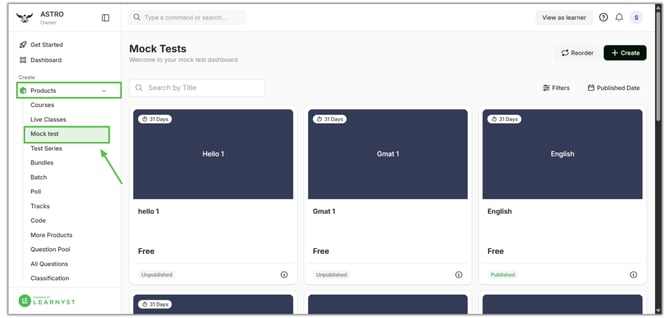
- To add useful terms to your Mock test, go to Products > Mock test > Select the Desired Mock test.
- Click the "Settings" button.
.png?width=670&height=318&name=Learnyst%20mock%20test%20settings%20(1).png)
- Click on "Branding.”
.png?width=670&height=318&name=Learnyst%20mock%20test%20settings%20(2).png)
- On this page, you can enter the important details and promotional video for your Mock test.
- Mock test name: Provide an attractive and suitable name for your Mock test.
- Short description: Add basic information about your Mock test. This will appear under your Mock test's name.
- Description: Enter impactful information about your Mock tests to grab learner's attention to subscribe to your Mock test.
.png?width=670&height=338&name=brand%20(2).png)
- Mock test Image: Click the "Upload" button and upload the image from your system to make your Mock test attractive.
- Mock test Video Embed: Click the "Upload" button and embed the promotional video by entering the URL.
.png?width=670&height=338&name=brand%20(3).png)
- Finally, don’t forget to hit the "Save" button.
- In the same way, you can add brand details for all of your products, including bundles, test series, and mock tests.