![Learnyst Logo-25-1.png]](https://support.learnyst.com/hs-fs/hubfs/Learnyst%20Logo-25-1.png?height=40&name=Learnyst%20Logo-25-1.png)
- To integrate the payU Money payment gateway, go to your Admin Dashboard > School Settings
- Click on Payment Gateway when you are inside the school settings.
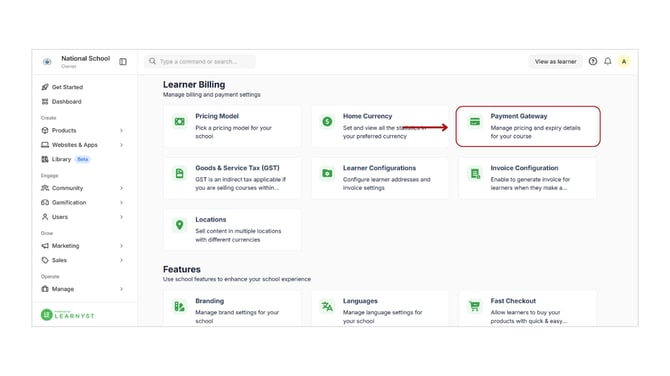
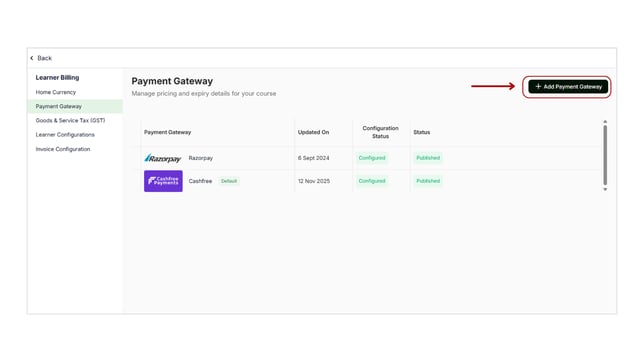
- Now click on Add Payment Gateway.
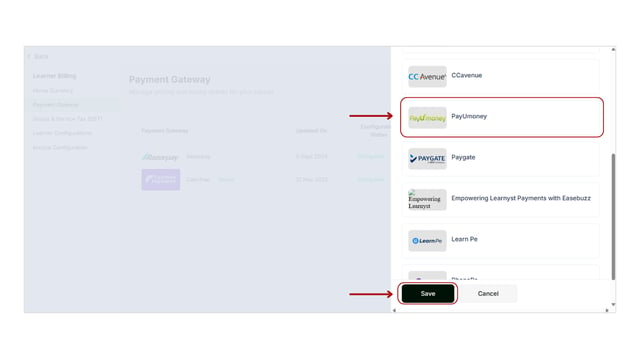
- Scroll down the list and find PayU money as listed payment gateway. Click on Save to complete the final steps.
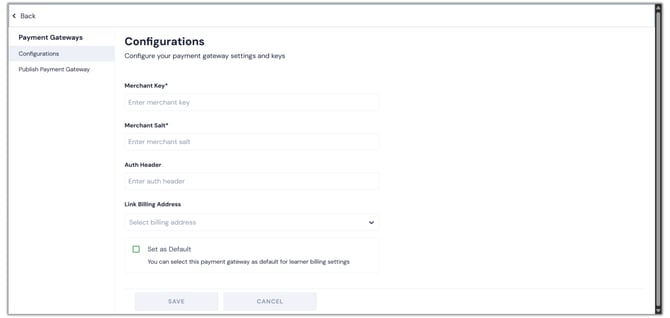
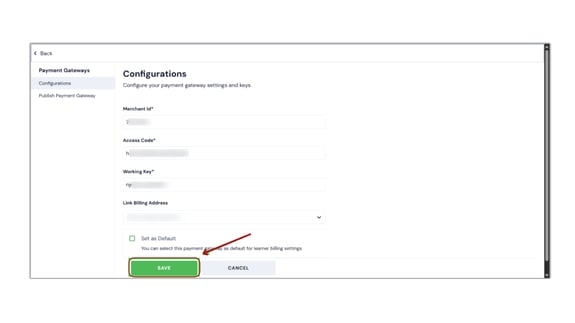
- On the next page, you have to enter your Merchant Key, Merchant Salt, Auth Header, And save it
- To get the Merchant key and Merchant slat, log in to your payU money account and go to the business area.
- Click the Manage Checkout > payment gateway selection here.
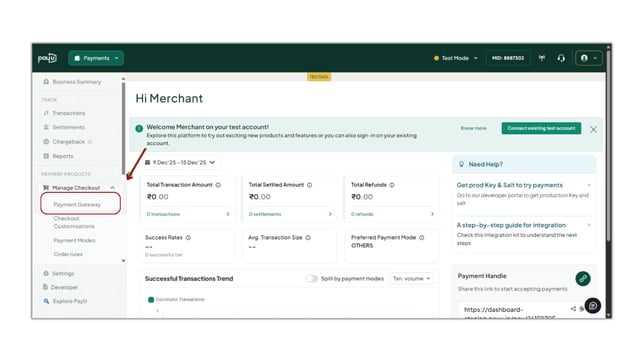
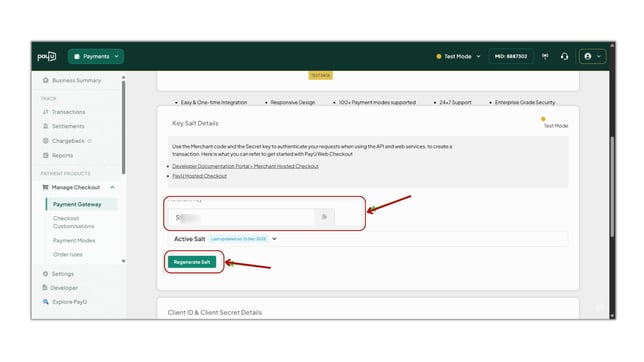
- You can see the merchant key by scrolling down.
- To get the merchant salt codes, click the Generate Salt button. once you have eneter the OTP, you will get the Merchant Salt
- Then, paste them into the appropriate fields after copying them.
- Select the billing address now. And click on save.
-
Set Up Webhook
Webhooks in PayU provide instant notifications about key events, such as successful payments, directly to your preferred platform. This helps streamline payment management.
- Log in to your PayU Dashboard.
- Go to Developers.
- Select the Webhooks tab.
- Click Create Webhook.
- Under Type, select Payments.
- Select the required payment event:
Successful- In the Webhook URL field, enter the following URL:
https://api.learnyst.com/learner/v7/webhook/payumoney_webhook- Click Create.
Note: You can refer to the video below to learn how to add the webhook.
Link: https://youtu.be/S5qde4rieE8?si=sXuYRcMhPJsd_ERK - Go back to Learnyst Admin dashboard and select publish and click on Save to publish the Payment Gateway.
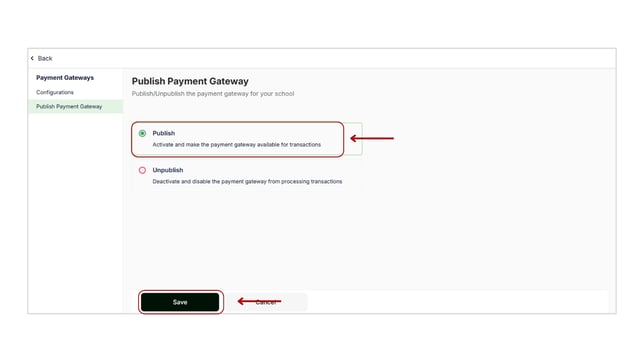
- Optionally, set it as the default payment gateway if desired.