![Learnyst Logo-25-1.png]](https://support.learnyst.com/hs-fs/hubfs/Learnyst%20Logo-25-1.png?height=40&name=Learnyst%20Logo-25-1.png)
-
Once you have configured your SDK credentials, you can set up webhook specifications. You can auto-download Zoom recordings and synchronization of ending sessions.
- To configure the webhook specifications, select the Webhook Configuration option.
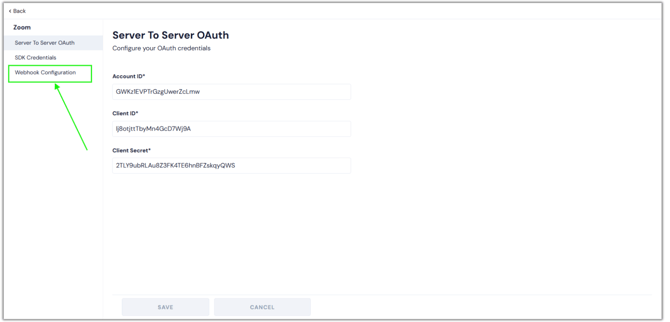
- You will arrive at the webhook page. Here you must enter the Webhook Secret Token.
.png?width=670&height=322&name=webh%20zoom%20(1).png)
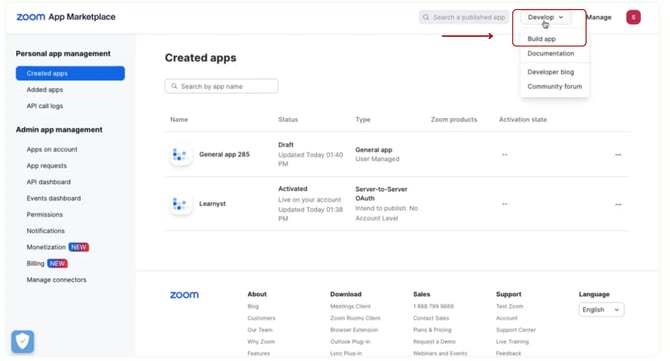
- Now go to the Zoom Marketplace and click on The Develop button. Then select the Build App
- Then select the Webhook Only App and click the Create button
.png?width=670&height=362&name=Configure%20your%20webhook%20for%20your%20school%20(1).png)
- Here, enter the developer information like name and email. then click the continue button.
.png?width=670&height=362&name=Configure%20your%20webhook%20for%20your%20school%20(2).png)
- Now go to the Feature and copy the Secret Token
.png?width=670&height=362&name=Configure%20your%20webhook%20for%20your%20school%20(4).png)
- Now, paste it into the Webhook Secret Token space and click the Save button.
.png?width=670&height=362&name=Configure%20your%20webhook%20for%20your%20school%20(5).png)
- Then return to your Zoom account's feature page.
- Here, enable Event Subscriptions and click the Add Event Subscription button.
.png?width=670&height=322&name=webh%20zoom%20(5).png)
- Enter the Subscription name
.png?width=670&height=362&name=Configure%20your%20webhook%20for%20your%20school%20(8).png)
- To enable the auto-download of Zoom recordings, go to your school and copy the Webhook Url For Recordings Auto-Download.
.png?width=670&height=322&name=webh%20zoom%20(6).png)
- Then paste it here.
.png?width=670&height=362&name=Configure%20your%20webhook%20for%20your%20school%20(7).png)
- Then, click the Authentication Header Option and select Custom header.
.png?width=670&height=322&name=webh%20zoom%20(8).png)
- Now, go to your school and copy these codes.
.png?width=670&height=322&name=webh%20zoom%20(10).png)
- Then paste them here correctly.
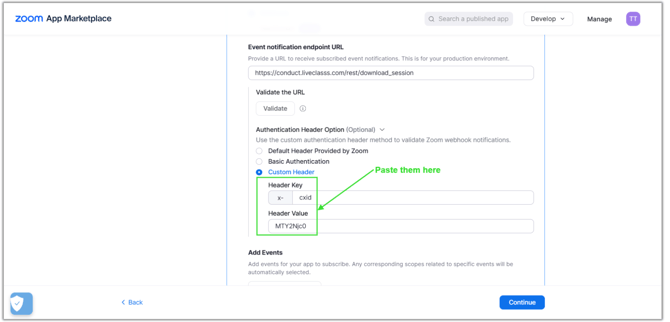
- Once you've pasted them, click the Add Event button.
.png?width=670&height=322&name=webh%20zoom%20(13).png)
- Click the Recording option and then select the All recordings have completed option. Now, click the Done button.
.png?width=670&height=322&name=webhoo%20(1).png)
- You have now added the event. Now, click the Validate button.
.png?width=670&height=322&name=webh%20zoom%20(14).png)
- Once the entered URLs have been validated, click the Save button.
.png?width=670&height=322&name=webh%20zoom%20(15).png)
- Then Click the Add Event Subscription button again to synchronise the end of sessions.
.png?width=670&height=322&name=webh%20zoom%20(16).png)
- Enter the Subscription name as end session.
.png?width=670&height=362&name=Configure%20your%20webhook%20for%20your%20school%20(9).png)
- To synchronise the ending sessions, go to your school and copy the Webhook Url For Ending Session.
.png?width=670&height=322&name=webh%20zoom%20(19).png)
- Then paste it here.
.png?width=670&height=362&name=Configure%20your%20webhook%20for%20your%20school%20(10).png)
- Now go to the school and copy the Custom Header Key and Header Value
.png?width=670&height=362&name=Configure%20your%20webhook%20for%20your%20school%20(11).png)
- Then, click the Authentication Header Option, select the Custom header option, and paste the Custom Header Key and Header Value as before.
.png?width=670&height=322&name=webh%20zoom%20(18).png)
- Then, click the Add Event button.
- Here, click the Meeting option and then select the End Meeting option.
.png?width=670&height=322&name=webhoo%20(2).png)
- Then click the Webinar option, select the End Webinar option, and the Done button.
.png?width=670&height=322&name=webhoo%20(3).png)
- You have now added the event. Now, click the Validate button.
.png?width=670&height=322&name=webh%20zoom%20(22).png)
- Once the entered URLs have been validated, click the Save button.
.png?width=670&height=322&name=webh%20zoom%20(23).png)
- Now, your Zoom live class recordings will be instantly uploaded to your lessons after you finish your Zoom class.
FAQs
1) Zoom says "URL validation failed" when I add the webhook endpoint. How do I fix it?
Validation fails when the Secret Token in Learnyst doesn't match the one in your Zoom app. Copy the Secret Token from the Zoom app's Feature section, paste it into Learnyst's Webhook Secret Token field, and Save it in Learnyst first — then click Validate in Zoom. If you regenerated the token in Zoom at any point, the old value stored in Learnyst is stale and validation will keep failing until you update it. Also confirm the custom header codes from your Learnyst school settings were copied into the Zoom subscription exactly.
2) My webhooks show as "Unverified" in Zoom — recordings stopped uploading. What does it mean?
An Unverified webhook is one Zoom no longer trusts, and it silently stops delivering events — so recordings stop appearing and sessions stop closing in the admin panel, with no error shown to you. Re-copy the Secret Token into Learnyst, save, and validate the subscription again in Zoom; both subscriptions (recordings and end-session) must show as verified.
3) The recording is in my Zoom account, but it never arrived in the lesson. What should I check, in order?
(3. a) Both event subscriptions exist and are verified — one for recordings, one for end-session.
(3. b) The right events are selected: Recording → All recordings have completed on the recordings subscription, End Meeting and End Webinar on the end-session one.
(3. c) The two URLs are not swapped — the "Recordings Auto-Download" URL and the "Ending Session" URL each belong to their own subscription; swapped, both break with no error.
(3. d) The custom headers are present on both. If everything checks out and it still doesn't arrive, download the recording from Zoom and upload it to the lesson manually while support reviews the configuration.
4) My class ended, but the admin panel still shows the session as live.
That's the second webhook — the "end session" subscription — missing, unverified, or carrying the wrong URL. It's a separate event subscription from the recordings one and must be configured with the End Meeting and End Webinar events.
5) There are two webhook URLs in my school settings. Which goes where?
The Webhook URL for Recordings Auto-Download goes in the subscription with the All recordings have completed event; the Webhook URL for Ending Session goes in the one with End Meeting / End Webinar. Each URL only understands its own events — putting one URL in both subscriptions, or swapping them, silently breaks uploads and session endings.
6) Do I need this Webhook-Only app as well as the Server-to-Server OAuth app?
Yes — they're two different apps doing two different jobs. The Server-to-Server OAuth app gives Learnyst permission to fetch your recordings; the Webhook-Only app is how Zoom tells Learnyst a class ended and a recording is ready. With only the OAuth app configured, recordings won't upload automatically.
7) I regenerated the Secret Token in my Zoom app. Do I need to do anything?
Yes, immediately: paste the new token into Learnyst's Webhook Secret Token field, save, and re-validate both subscriptions in Zoom. The moment you regenerate, the old token is dead and events stop flowing.