![Learnyst Logo-25-1.png]](https://support.learnyst.com/hs-fs/hubfs/Learnyst%20Logo-25-1.png?height=40&name=Learnyst%20Logo-25-1.png)
- To copy a test series for your school, log in as an admin.
- Then choose the Contents option from the left-hand menu bar.
- Now, select Utilities from the dropdown.
- Now, click the Copy Product option.
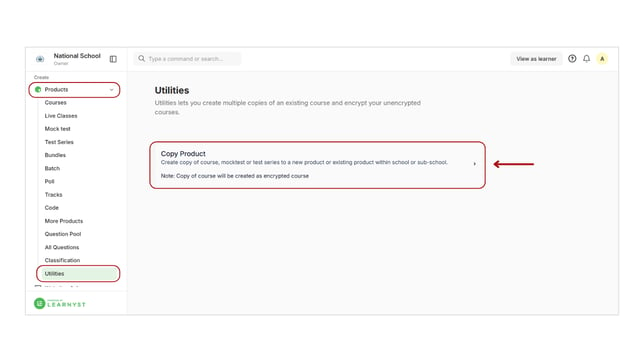
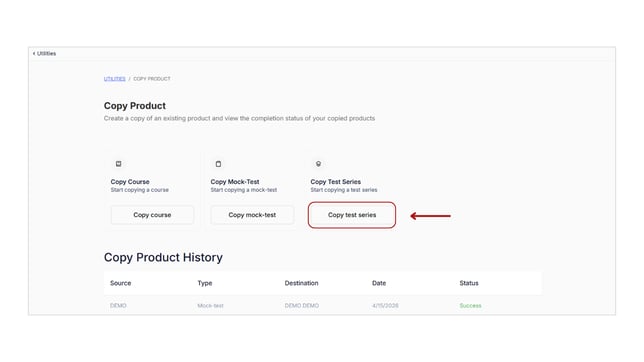
- When you click it, you will be taken to this page. Now, click the Copy Test series option.
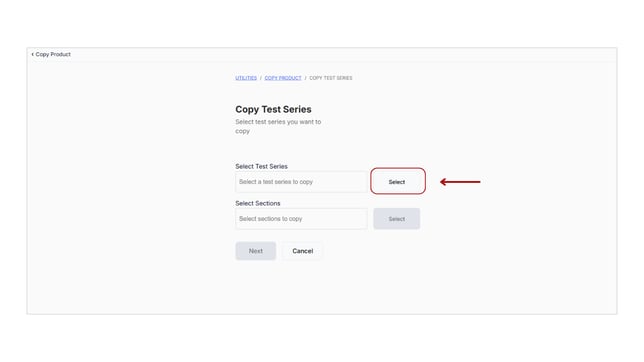
- Now, click the Select button to choose the test series.
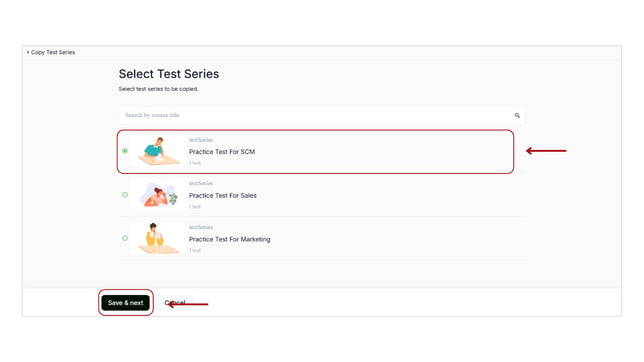
- Here's a list of your test series. Now, choose any test series to copy. Then click the Save & Next button.
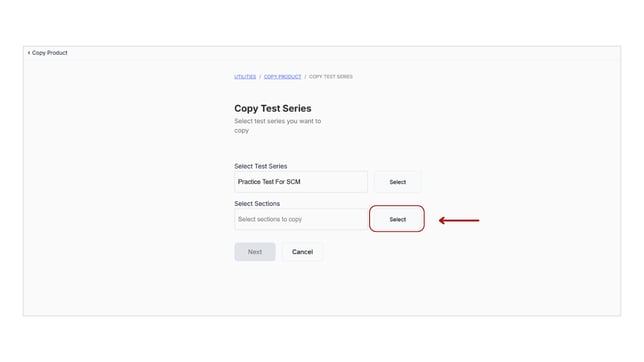
- After you've chosen a test series, you must select its sections and tests. To choose sections, click the another Select button.
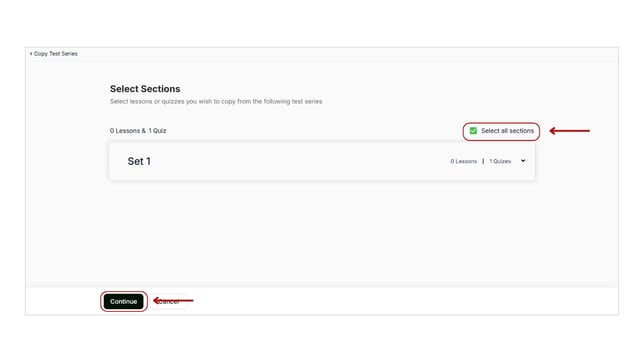
- Select the desired sections or to copy all the sections, click the Select All Sections box.
- After you've picked the sections, click the Continue button.
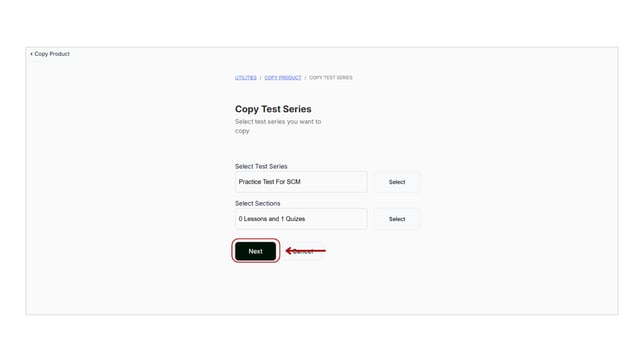
- Now, click the Next button.
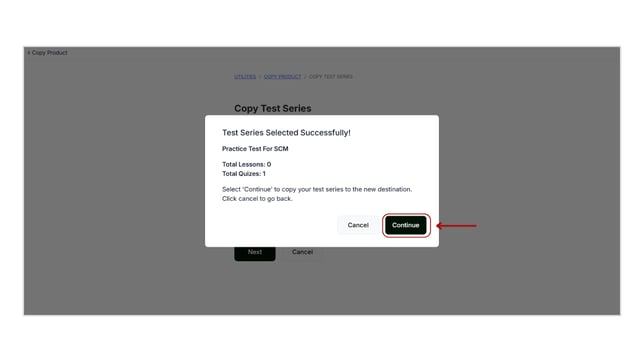
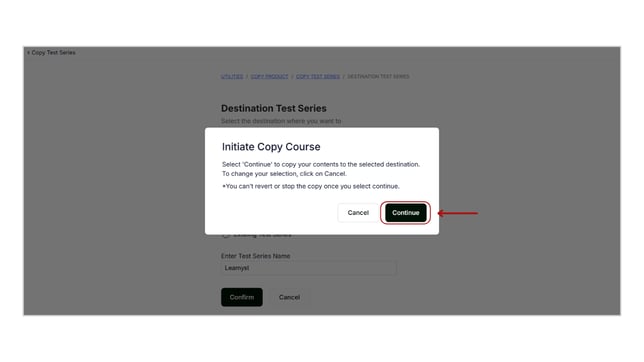
- A confirmation pop-up appears in the window. Simply click the Continue button.
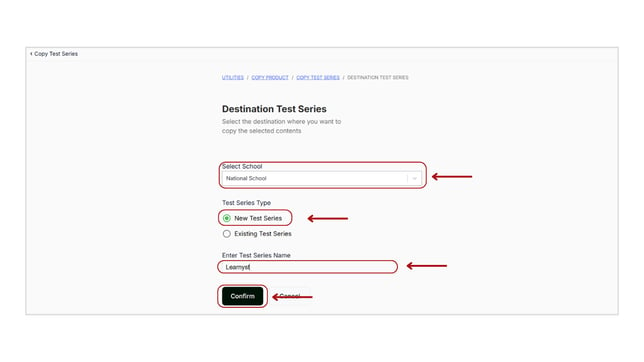
- Here, choose the school or the sub-school and the new test series option.
- Enter the name of the new test series. Then, click the Confirm button.
- A confirmation pop-up appears in the window. Simply click the Continue button.
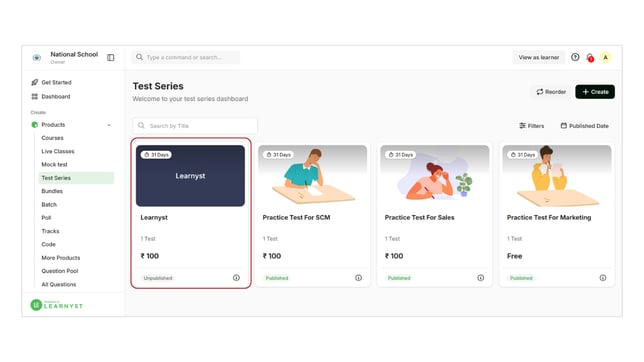
- Your test series is now copied. Once copied, you can see the newly copied test series on the test series page.
- These steps will allow you to build a new test series by copying an existing test series.