![Learnyst Logo-25-1.png]](https://support.learnyst.com/hs-fs/hubfs/Learnyst%20Logo-25-1.png?height=40&name=Learnyst%20Logo-25-1.png)
- To change your bundle to private or unlisted, navigate to Products > Bundles > Select the desired bundle.
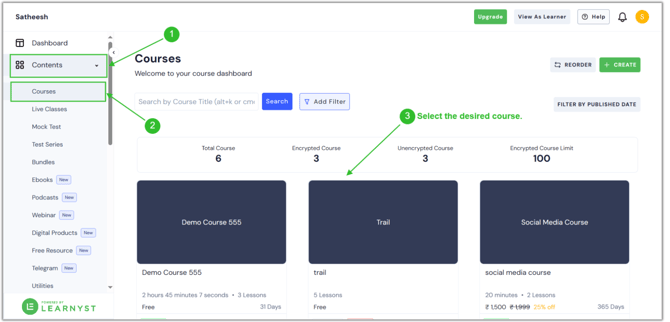
- Next, click the Settings button.
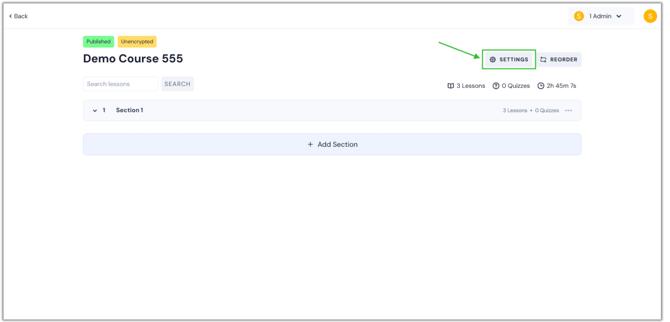
- You will now be on the settings page. Scroll down and choose "Permissions" from the Pricing & Permissions menu.
.png?width=670&height=322&name=remo%20(3).png)
- This page displays the public, private, and unlisted bundle options under the Course access type.
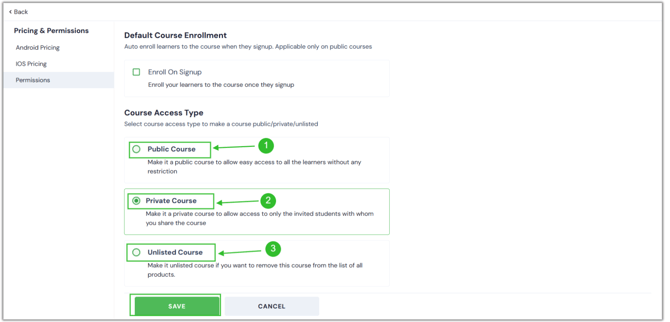
- Public Bundle: If you select this option, your course will be available to all of your learners. By default, all of your Bundle will be public.
- Private Bundle: This option ensures that your bundles are only viewable to the learners you invite.
- Unlisted Bundle: This option removes the bundle from all of your products, including courses. but the learners can access the course via a link.
- Once you've chosen the right option, click the Save button.
.png?width=670&height=322&name=o.v%20priva%20(1).png)
- In the same way, you can create private and unlisted products, including courses, test series, and mock tests.