![Learnyst Logo-25-1.png]](https://support.learnyst.com/hs-fs/hubfs/Learnyst%20Logo-25-1.png?height=40&name=Learnyst%20Logo-25-1.png)
- To add a section quiz to your course, go to Products > Courses > Select the desired course.
- Then click the "Add Lesson" button.
.png?width=670&height=321&name=Quiz%20lesson%20(4).png)
- Enter the lesson title, select the Section Quiz, and click the Continue button.
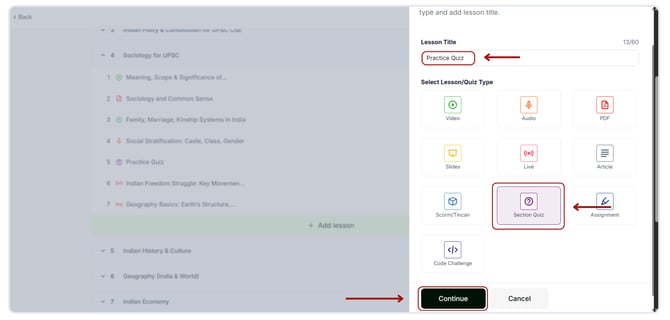
- The next screen will ask whether you want to take a general or practice quiz.
.png?width=670&height=321&name=Quiz%20lesson%20(1).png)
- If you select the General Quiz option, you can customise all of the features and question types.
- Furthermore, your learners will only be able to see the answers after submitting the test.
.png?width=670&height=322&name=dif%20gen%20quiz%20(2).png)
2. Practice Quiz:
- If you choose the Practice Quiz option, your learner can see the correct answer after answering each question.
- You can't create a new section in the practice quiz.
- The essay lesson is not available for practice quizzes.
- For the practice quiz, you can not modify the switch tab restriction and advanced feature settings (with the exception of Randomisation settings).
.png?width=670&height=322&name=dif%20gen%20quiz%20(3).png)
- Click the Save button.
- Now, click the Add Question button
.png?width=670&height=321&name=Quiz%20lesson%20(2).png)
- Upon clicking, a variety of quiz choices appear on the right side. Select the appropriate option.
- I have selected the Multiple-choice question.
.png?width=670&height=321&name=Quiz%20lesson%20(3).png)
Your learners won't be able to examine the question until you publish your quiz.