![Learnyst Logo-25-1.png]](https://support.learnyst.com/hs-fs/hubfs/Learnyst%20Logo-25-1.png?height=40&name=Learnyst%20Logo-25-1.png)
- To delete your Track, go to Products > Tracks and select the desired Track.
- Then, click the More > Settings button.
.png?width=670&height=318&name=Learnyst%20Track%20settings%20(1).png)
- You'll now be on the settings page. Simply scroll down and choose the Delete Track option.
.png?width=670&height=318&name=Learnyst%20Track%20settings%20(2).png)
- Now, enter the Track name correctly, then click the Delete button.
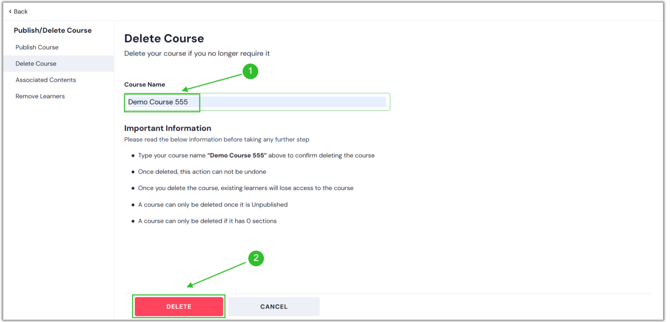
- Once you press it, a confirmation pop-up appears on the screen. Then click the Delete Track button.
.png?width=670&height=322&name=dele%20(1).png)
- You have now deleted your Track.
- In the same way, you can delete all of your products, including bundles, test series, and mock tests.
- Once deleted, this action cannot be reversed.
- After the Track is deleted, current learners will no longer be able to access it.
- Tracks can only be deleted if they are in unpublished status.
- A Track can only be removed if it contains no sections.\
- If the Track is not associated with any other product, like bundles or Trackes, you can't delete the Track.