![Learnyst Logo-25-1.png]](https://support.learnyst.com/hs-fs/hubfs/Learnyst%20Logo-25-1.png?height=40&name=Learnyst%20Logo-25-1.png)
1. Why are my learners not receiving emails?
If your learners are not receiving emails, try the following:
- Check whether the learners' registered email addresses are correct.
- Ask the learners to check their Spam or Junk folders.
- Check whether the learners' inboxes have sufficient storage space.
- Ask the learners to wait for a few minutes, as email delivery may sometimes be delayed.
- If the option is available, try resending the email.
2. Why are my learners not receiving verification emails?
If your learners are not receiving verification emails:
- Check whether the learners have entered the correct email addresses during registration.
- Ask the learners to check their Spam or Junk folders.
- Ask them to wait for a few minutes.
- Try resending the verification email, if the option is available.
3. Why are my learners not receiving password reset emails?
If your learners have requested a password reset but have not received the email:
- Ensure that they are using their registered email addresses.
- Ask them to check their Spam or Junk folders.
- Ask them to wait for a few minutes.
- Request them to try the password reset process again.
4. Why are my learners not receiving email OTPs?
If your learners are not receiving OTPs through email:
- Check whether their registered email addresses are correct.
- Ask them to check their Spam or Junk folders.
- Request them to wait for a few minutes before requesting another OTP.
- Ensure that their inboxes can receive new emails.
5. Why are emails going to my learners' Spam or Junk folders?
Email service providers use spam filters to identify and filter potentially unwanted emails. As a result, emails sent to your learners may sometimes be delivered to their Spam or Junk folders.
To avoid this:
- Ask your learners to check their Spam or Junk folders.
- If the email is found there, ask them to mark it as Not Spam.
- Ask them to add the sender's email address to their contacts or safe-sender list.
6. Why are emails being bounced or rejected?
An email may bounce when a learner's email address is invalid, inactive, or rejected by the recipient's mail server.
To troubleshoot this:
- Verify whether the learner's registered email address is correct.
- Check whether the email account is active.
- Correct any spelling errors in the email address.
- If the email address is no longer active, ask the learner to provide a valid alternative email address and update their registered details accordingly.
7. Why are emails delayed?
Email delivery may be delayed due to temporary network issues, mail server processing, recipient server restrictions, or service interruptions.
If your learners report delayed emails:
- Ask them to wait for a few minutes.
- Ask them to check their inbox and Spam or Junk folders.
- Check whether the issue affects multiple learners or only a specific learner.
Email delivery time may vary depending on the recipient's email service provider.
Avoid repeated email requests if delivery fails. Retry a maximum of three times, maintaining a reasonable delay between attempts. If the email is still not received, stop retrying and contact support@learnyst.com with the relevant details. Repeated requests may trigger security restrictions and lead to temporary learner account suspension.
8. Why are my learners not receiving notification emails?
Notification emails may not be delivered due to incorrect email settings, notification preferences, delivery delays, or temporary service interruptions.
To troubleshoot this:
- Check whether the relevant notification settings are enabled.
- Verify whether the learners' registered email addresses are correct.
- Ask the affected learners to check their Spam or Junk folders.
- Check whether the issue affects all learners or only specific learners.
9. Why are my learners not receiving marketing or promotional emails?
Marketing emails may not be delivered if learners have unsubscribed, opted out of promotional communications, or been added to an email suppression list.
To troubleshoot this:
- Check whether the affected learners have unsubscribed from marketing communications. (from learner Dashbaord >> learner profile >> Settings. and make sure "marketing Email Notification" is enabled.
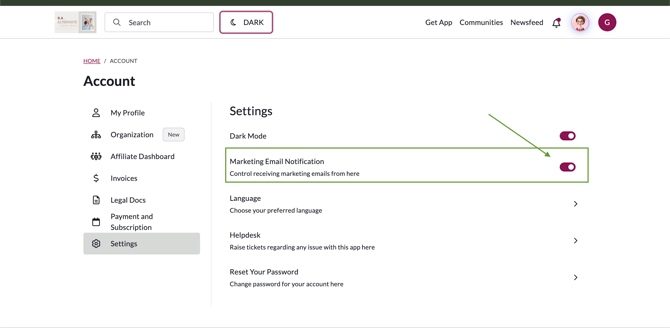
- Check whether their email addresses are present in the suppression list, if such a facility is available (only support team can check this).
- Ensure that the learners have opted in to receive promotional communications.
10. Why are emails not being sent after I trigger an action?
Emails may not be sent immediately after an action is triggered due to temporary processing delays or technical issues.
If the emails are not being sent:
- Wait for a few minutes and check the email delivery status, if available.
- Check whether the issue affects multiple learners or only specific learners.
- Verify whether the email-triggering action was completed successfully.
11. How can I check email delivery insights and identify why an email failed to reach a learner?
You can check the email delivery status and identify the reason for email delivery failures directly from your admin account.
Follow these steps:
- Log in to your Admin Account.
- Navigate to Insights → Messenger Insights.
- Select the System Emails section.
- Choose the relevant email type, such as Signup, Welcome, Discussion, or Forgot Password.
- Open the Reached section and search for the affected learner's email address.
Understanding the email delivery status from the Messenger Insights reports.
If the learner's email address is available under Reached:
This indicates that the email was successfully delivered to the recipient's mail server. However, it does not necessarily mean that the email reached the learner's primary inbox.
In this case:
- Ask the learner to check their Spam or Junk folder and other email folders.
- Ensure that the learner is checking the same email account registered on your platform.
- Ask the learner to verify whether the email is available in their inbox.
If the learner's email address is not available under Reached:
Check the following sections to identify the reason for the delivery failure:
- Bounced: Indicates that the recipient's mail server rejected the email.
- Complained: Indicates that the recipient marked the email as spam.
- Failed: Indicates that the email could not be delivered due to a sending or delivery error.
Review the available status details to identify the specific reason for the failure and take the appropriate action.
NOTE : If a learner's email address is marked as Hard Bounced, Complained, or Failed, please follow these steps:
- Ask the learner to create a new learner account on your platform using a different, valid email address.
- Ask the learner to verify the new email address.
- Once the new email address is verified, transfer the learner's existing course access to the newly created learner account.
This will help the learner continue accessing the courses using the new email address.
11. How can I check whether my learners' email addresses have deliverability issues?
You can use an email verification tool such as DeBounce to check whether your learners' email addresses are valid or potentially risky.
DeBounce provides checks for:
- Invalid email addresses: Identifies email addresses that may not exist.
- Syntax errors: Identifies incorrectly formatted email addresses.
- Domain and MX records: Checks whether the domain has mail server records.
- Disposable email addresses: Identifies temporary email addresses.
- Spam traps: Helps identify potentially risky email addresses.
- Catch-all domains: Identifies domains that accept emails sent to different addresses, making individual mailbox verification uncertain.
How to use DeBounce
- Visit https://debounce.com/.
- Use the email verification option to check the affected learner's email address.
- Run the verification.
- Review the result to identify whether the email address is valid, invalid, disposable, or has an uncertain status.
- If you need to check multiple learners' email addresses, you can use the bulk email validation option.
Note: DeBounce helps identify invalid or potentially risky email addresses. A valid result does not guarantee that an email will reach the learner's inbox. Issues related to sender configuration, domain authentication, sending reputation, or recipient-side filtering may require separate investigation.
NOTE : If the Issue Persists
If you have followed the relevant troubleshooting steps above and your learners are still not receiving emails, please contact us at support@learnyst.com with the following details:
- Learner's registered email address: The email address where the learner expected to receive the email.
- Email type: Specify whether it was a verification email, welcome email, OTP, password reset email, notification, or any other email.
- Date and time: Mention the approximate date and time when the email was requested or triggered.
- Spam/Junk folder: Let us know whether the learner checked their Spam or Junk folder and whether the email was found there.
- Screenshots: Attach any relevant screenshots showing the issue, email request, or error message.
- Email verification result: If you used DeBounce, share the verification result, if available.
Providing these details will help our support team investigate the email delivery issue further.