![Learnyst Logo-25-1.png]](https://support.learnyst.com/hs-fs/hubfs/Learnyst%20Logo-25-1.png?height=40&name=Learnyst%20Logo-25-1.png)
To access and update your home currency, follow these steps:
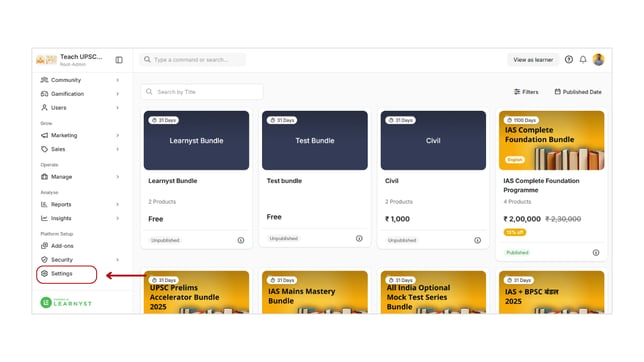
- To access your user settings, simply click on your profile and choose Settings. Alternatively, you can navigate to the Settings tab on the top bar and access School Settings.
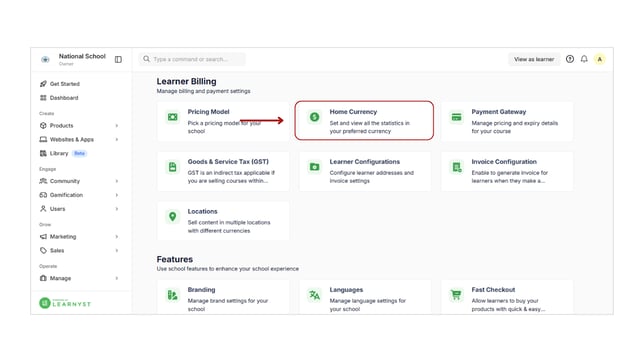
- Under Learner Billing Label, click on Home Currency.
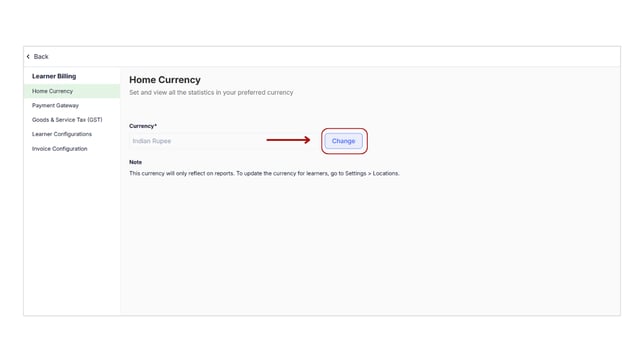
- Click Change and select the currency you want as your new home currency. By default, the home currency is set to India.
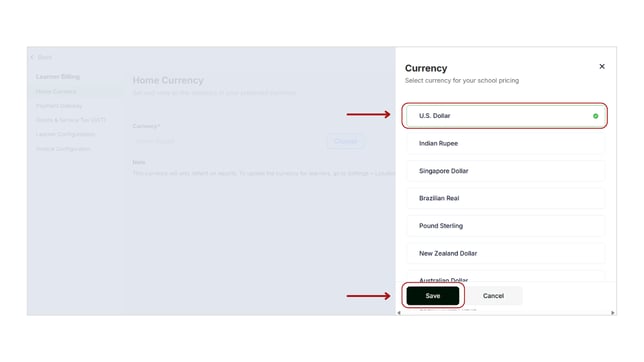
Note that once you change your home currency:
- You will view all transactional reports in the new currency, whereas amount remains the same. For instance, a sale of ₹100 will be presented as $100.
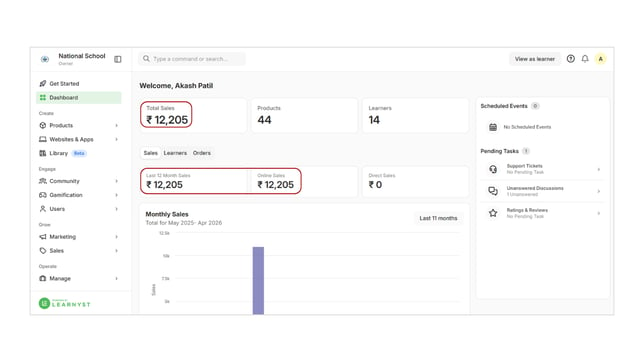
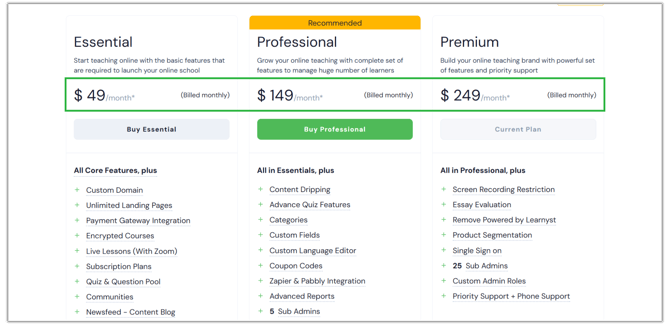
- If you decide to upgrade your plans, please note that the bills will be displayed in USD if you switch your currency to any option other than INR.
- The default currency for product prices will be the same as the Rest of the World currency. This means that people from around the world will see your courses in this currency.