![Learnyst Logo-25-1.png]](https://support.learnyst.com/hs-fs/hubfs/Learnyst%20Logo-25-1.png?height=40&name=Learnyst%20Logo-25-1.png)
What is e-sign?
E-Sign lets you require your learners to digitally sign a contract — for example, a student enrollment agreement — before they can buy or access a product. The signing is handled securely through Zoho Sign.
Why use it?
It gives you a legally recorded agreement from every learner (enrollment terms, refund policy, code of conduct, and more) with no paperwork — the signed copy is captured and stored automatically.
Good to know before you start
- The contract must be Published and attached to the product's pricing plan, and the plan's payment gateway should be set to Cashfree.
- You control the timing: the learner can sign Before Purchase (on the checkout page) or After Purchase (right after paying).
- Aadhaar eSign is optional and appears only if you enable Digital Verification on the plan.
- Each learner signs only once, and the signed copy is saved under Legal Docs.
What your learners see — step by step
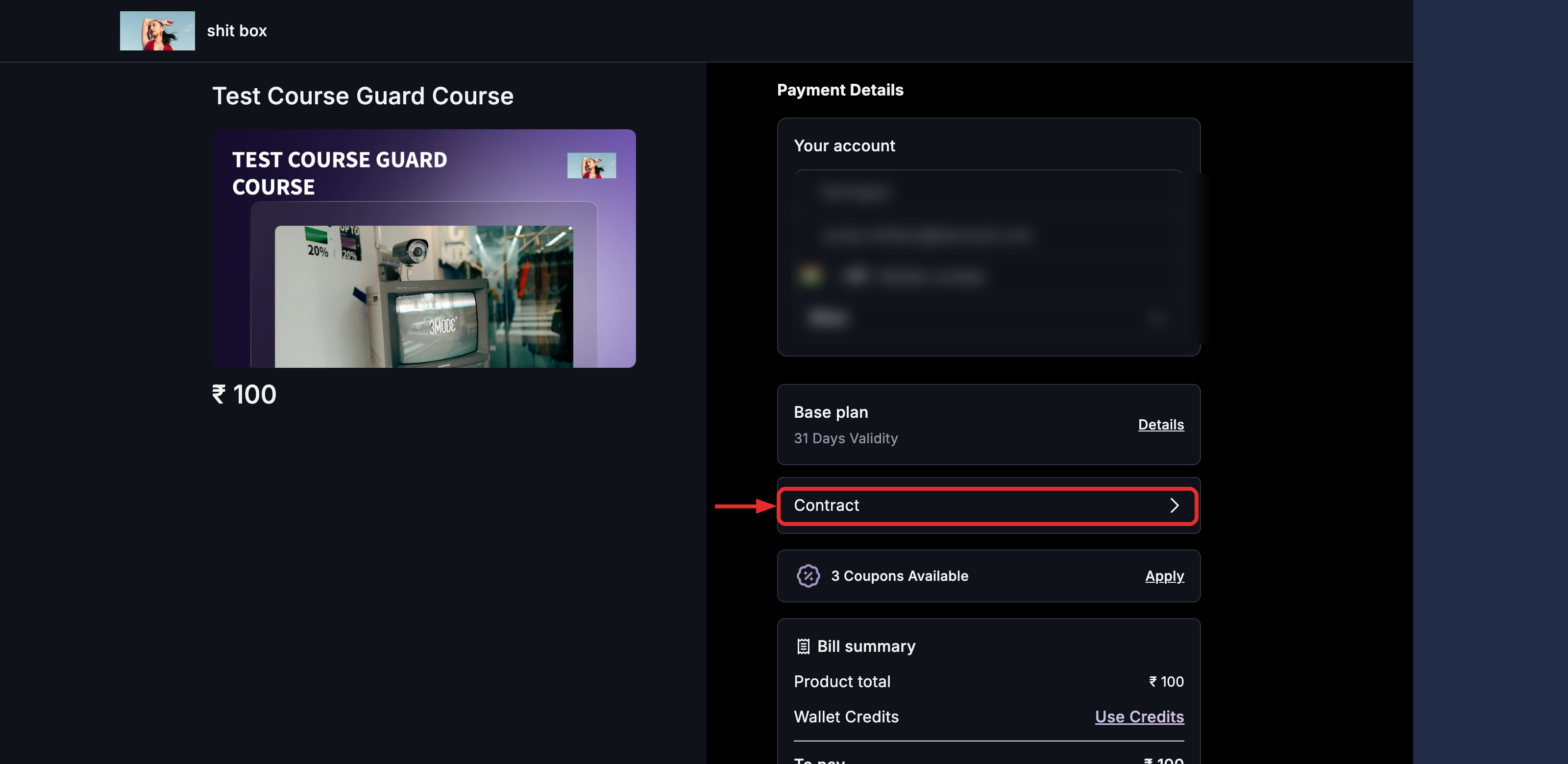
Step 1 — Open the contract at checkout. On the checkout page, before the learner can pay, a Contract row appears under Payment Details. They must open and sign this contract first — payment stays locked until it is signed.
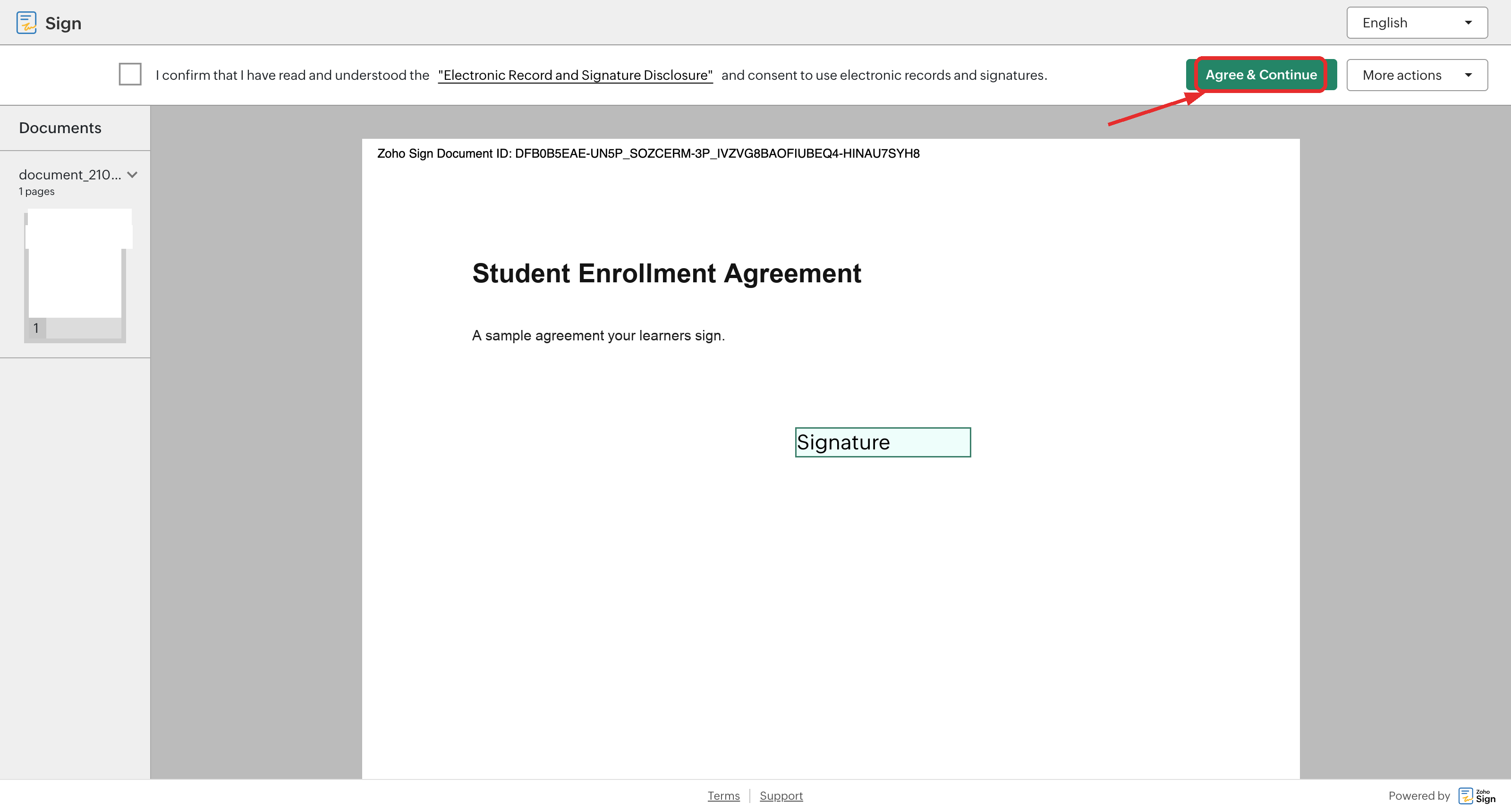
Step 2 — Agree to the disclosure. Opening the Contract row loads the document in Zoho Sign. The learner ticks the box confirming they have read the Electronic Record and Signature Disclosure, then clicks Agree & Continue.
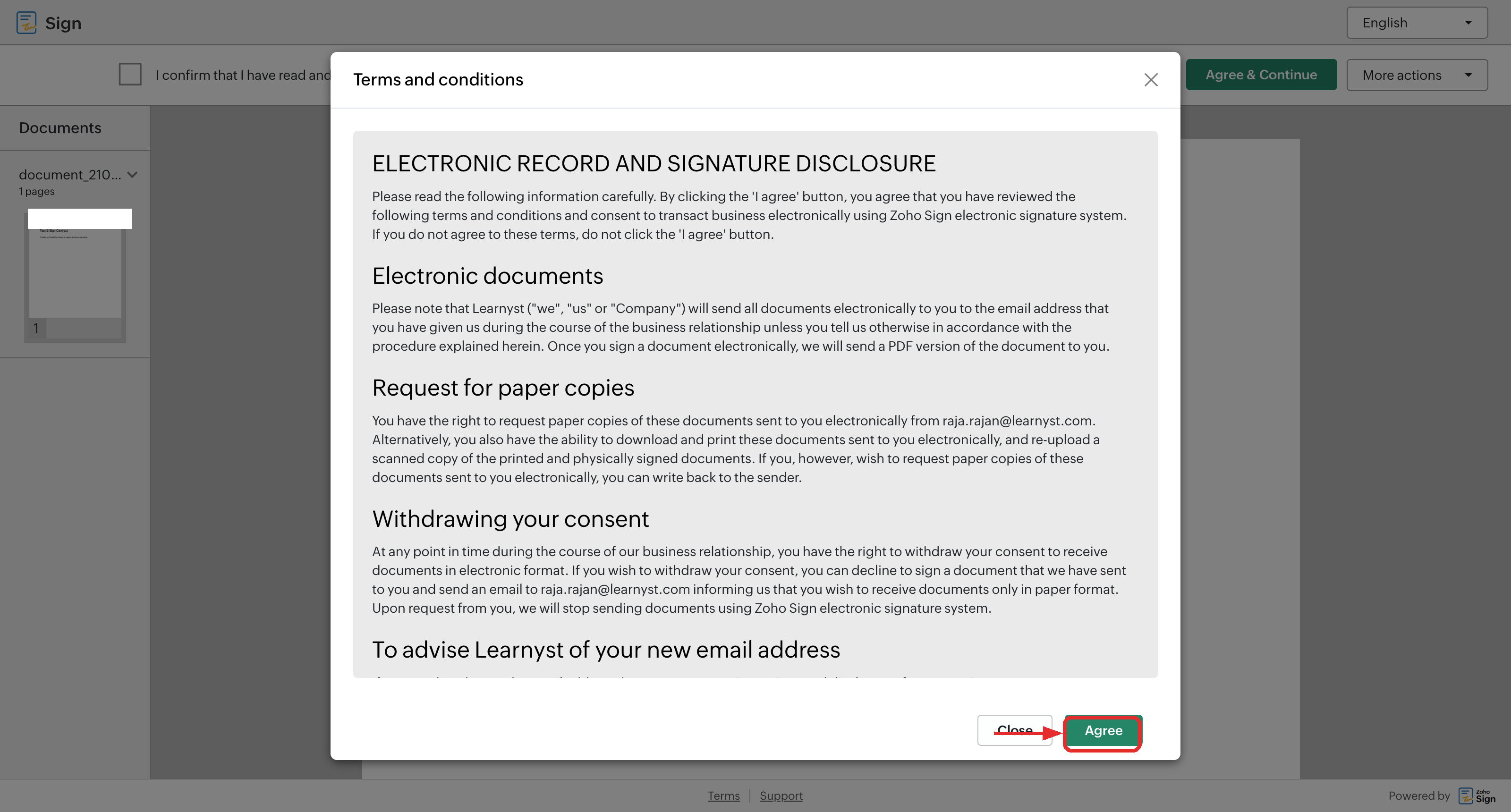
Step 3 — Confirm the disclosure. If a disclosure window appears, the learner reads it and clicks Agree to continue.
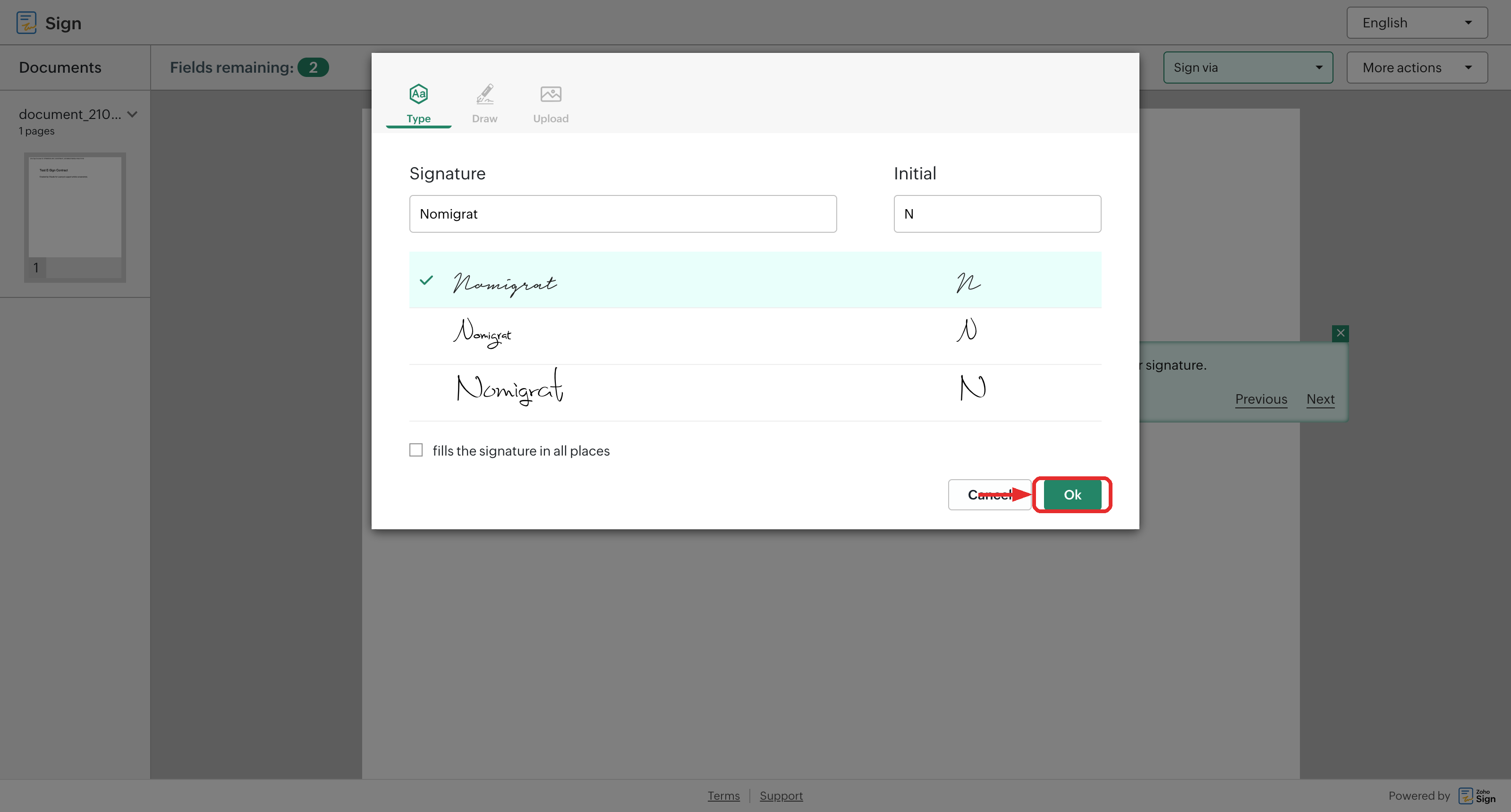
Step 4 — Create a signature. The learner clicks the Signature field on the document and creates their signature — they can Type it, Draw it, or Upload an image — then clicks Ok to place it.
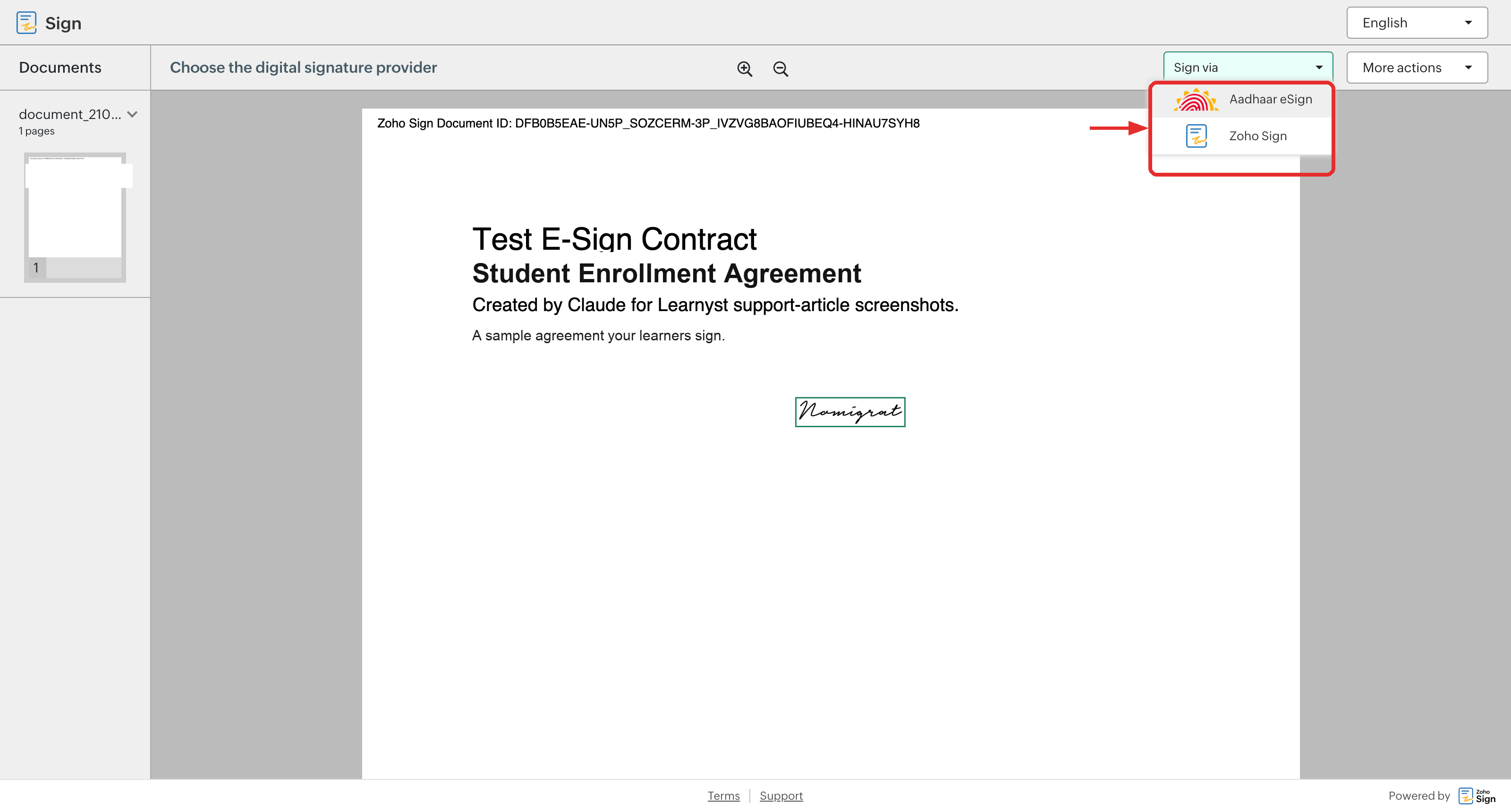
Step 5 — Choose a signing method. The learner picks how to sign under Sign via: either Zoho Sign (using the signature they just created) or Aadhaar eSign. If they choose Aadhaar eSign, they enter their Aadhaar number and verify it with an OTP. Aadhaar appears only if you enabled Digital Verification on the plan.
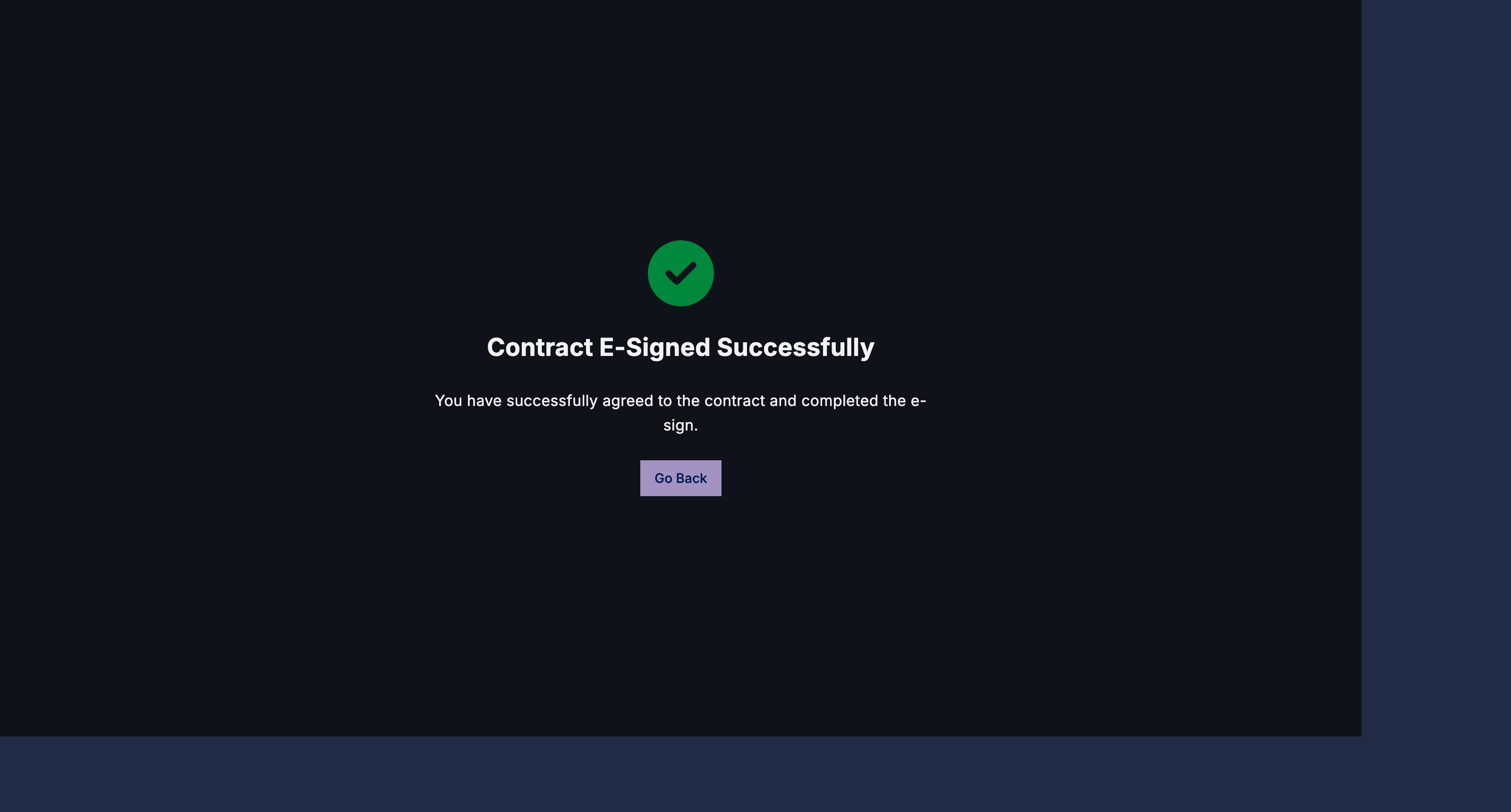
Step 6 — Finish and pay. Once signing is complete, the learner sees a Contract E-Signed Successfully confirmation. They click Go Back to return to the checkout page and complete the payment.
Note: If you set the contract to be requested After Purchase instead of before, the learner pays first and is then prompted to sign before they can open the product. Either way, a signed copy is always saved to the learner's account under Legal Docs.