![Learnyst Logo-25-1.png]](https://support.learnyst.com/hs-fs/hubfs/Learnyst%20Logo-25-1.png?height=40&name=Learnyst%20Logo-25-1.png)
Method 1: Delete meta.dat from the Application Folder
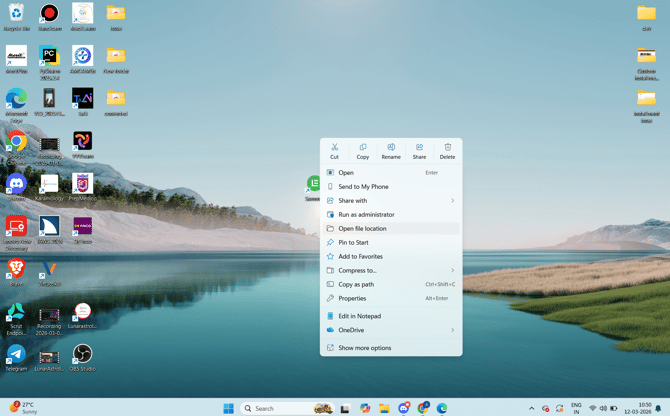
Step 1: Locate the Application Shortcut
-
Go to the Windows Desktop.
-
Locate the Windows Application shortcut.
-
Right-click on the application icon.
-
From the menu, click Open file location.
Step 2: Locate the meta.dat File
-
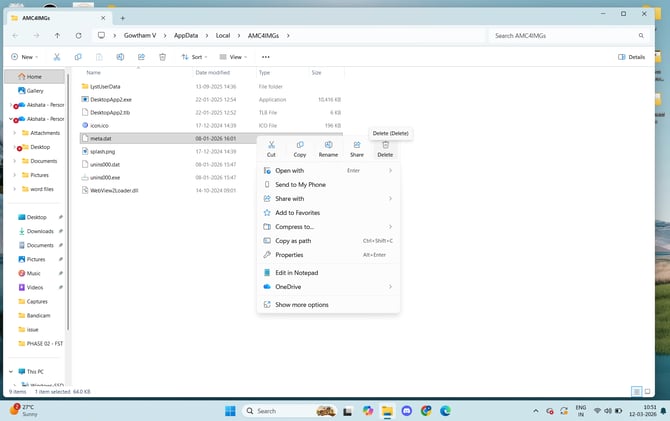
Inside the opened folder, look for the file named
meta.dat. -
Select the file.
-
Right-click on the file.
-
Click Delete.
Once deleted, close the folder.
Note : if the meta.dat file is not found inside the opened application location Please start following the below method 2 to delete the file using command prompt
Method 2: Delete meta.dat Using Command Prompt
Step 1: Open Command Prompt
-
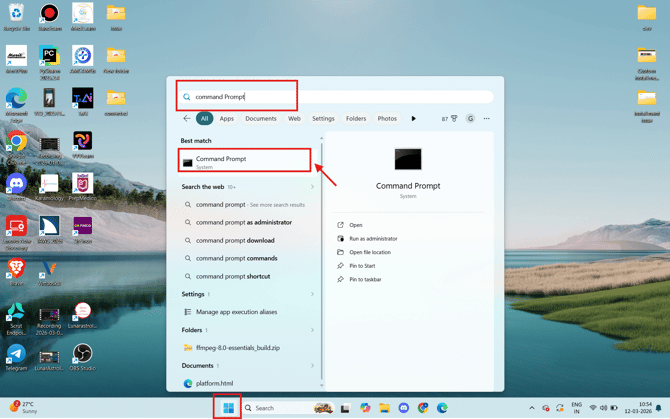
Click on the Windows Search bar.
-
Type Command Prompt.
-
Click Command Prompt to open it.
Step 2: Navigate to the Application Data Folder
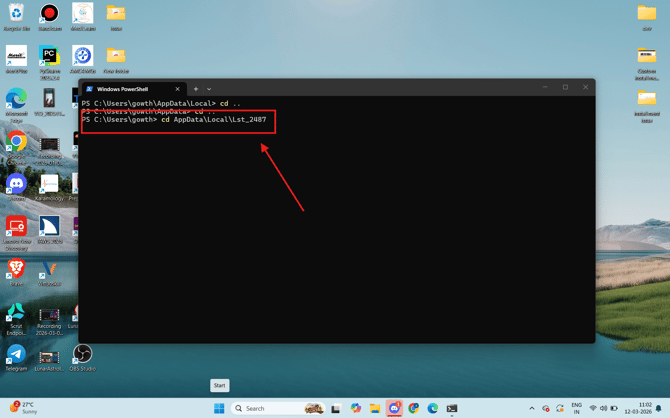
Copy and paste the command from the table below into the Command Prompt.
cd AppData\Local\Lst_{school_id}

We have provided the command list based on each school name.
Please refer to the table below to find and use the correct command for your institute.
Example :
List of commands according to School :
| Pathfinder Academy | cd AppData\Local\Lst_186408 |
| AMC4IMGs | cd AppData\Local\Lst_167283 |
| Lunar Astro Vedic Academy | cd AppData\Local\Lst_190883 |
| Drfinco | cd AppData\Local\Lst_138904 |
| Siddha Mudra | cd AppData\Local\Lst_187427 |
| Prepmedico | cd AppData\Local\Lst_163798 |
| Medisys | cd AppData\Local\Lst_185274 |
| Medisys inst (campus | cd AppData\Local\Lst_187888 |
| Karamology | cd AppData\Local\Lst_125546 |
| Univx | cd AppData\Local\Lst_191404 |
|
Volatility Volume and Value (VVVlearn) |
cd AppData\Local\Lst_175482 |
| Meritplus | cd AppData\Local\Lst_182702 |
| Medilearngamma | cd AppData\Local\Lst_180851 |
|
VIRTUOSKILL |
cd AppData\Local\Lst_2487 |
| Amaze GATE AE JE | cd AppData\Local\Lst_155817 |
| iPlus Training Solutions | cd AppData\Local\Lst_83139 |
| Knowledgist | cd AppData\Local\Lst_157590 |
| BanglayIELTS | cd AppData\Local\Lst_151604 |
| Real World Learning Business School | cd AppData\Local\Lst_17062 |
`
Step 3: Delete the File
Run the following command:
del meta.dat
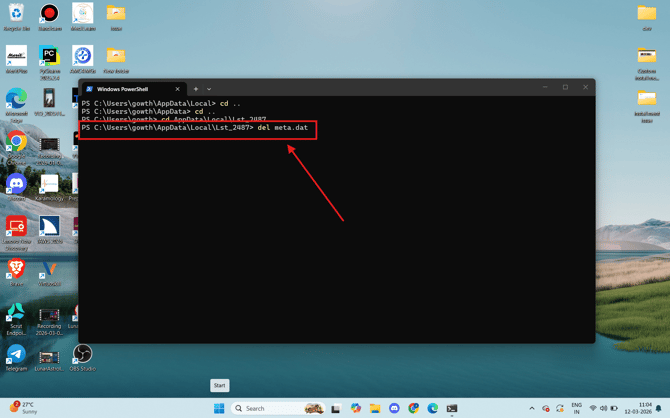
If the command executes without errors, the file has been successfully deleted.
Final Step
-
Close the Command Prompt.
-
Reopen the Windows Application.
-
Log in to your account again.
The application will automatically recreate the meta.dat file with fresh data.