![Learnyst Logo-25-1.png]](https://support.learnyst.com/hs-fs/hubfs/Learnyst%20Logo-25-1.png?height=40&name=Learnyst%20Logo-25-1.png)
Send your e-sign contract to enrolled learners and keep track of who has signed it.
Step 1: Open the contract's consent report
Go to Users → Legal Documents → Contract, open the ESIGN tab, and click a contract. This opens its consent report, List of all the learners that have signed the contract. You can use Search, Filters, Columns, Requested At, Export and Settings to work with the report.
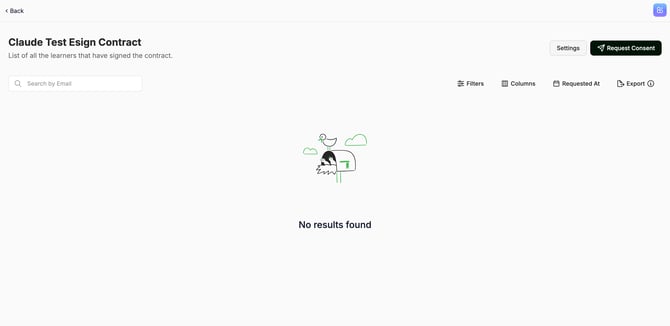
Step 2: Click Request Consent
Click Request Consent in the top-right corner. This opens Learner Enrollments, with the columns Learner Details, Enrolled Type, Product title, Product Type, Enrolled On and Expiry Date. Use Filters, search or Create Group to narrow the list.
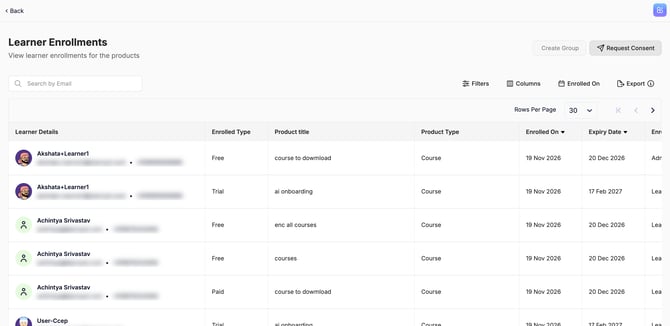
Step 3: Send the request
Select the learner(s) and click Request Consent. The selected learners are then prompted to complete the e-sign.
Note: Learners who have already signed the unchanged contract aren't asked again.