![Learnyst Logo-25-1.png]](https://support.learnyst.com/hs-fs/hubfs/Learnyst%20Logo-25-1.png?height=40&name=Learnyst%20Logo-25-1.png)
Once your e-sign contract is Published, attach it to a product's pricing plan so learners must sign it when they buy.
Note: The plan's payment gateway must be Cashfree for the e-sign checkout settings to work. Aadhaar verification is optional.
Step 1: Open the pricing plan
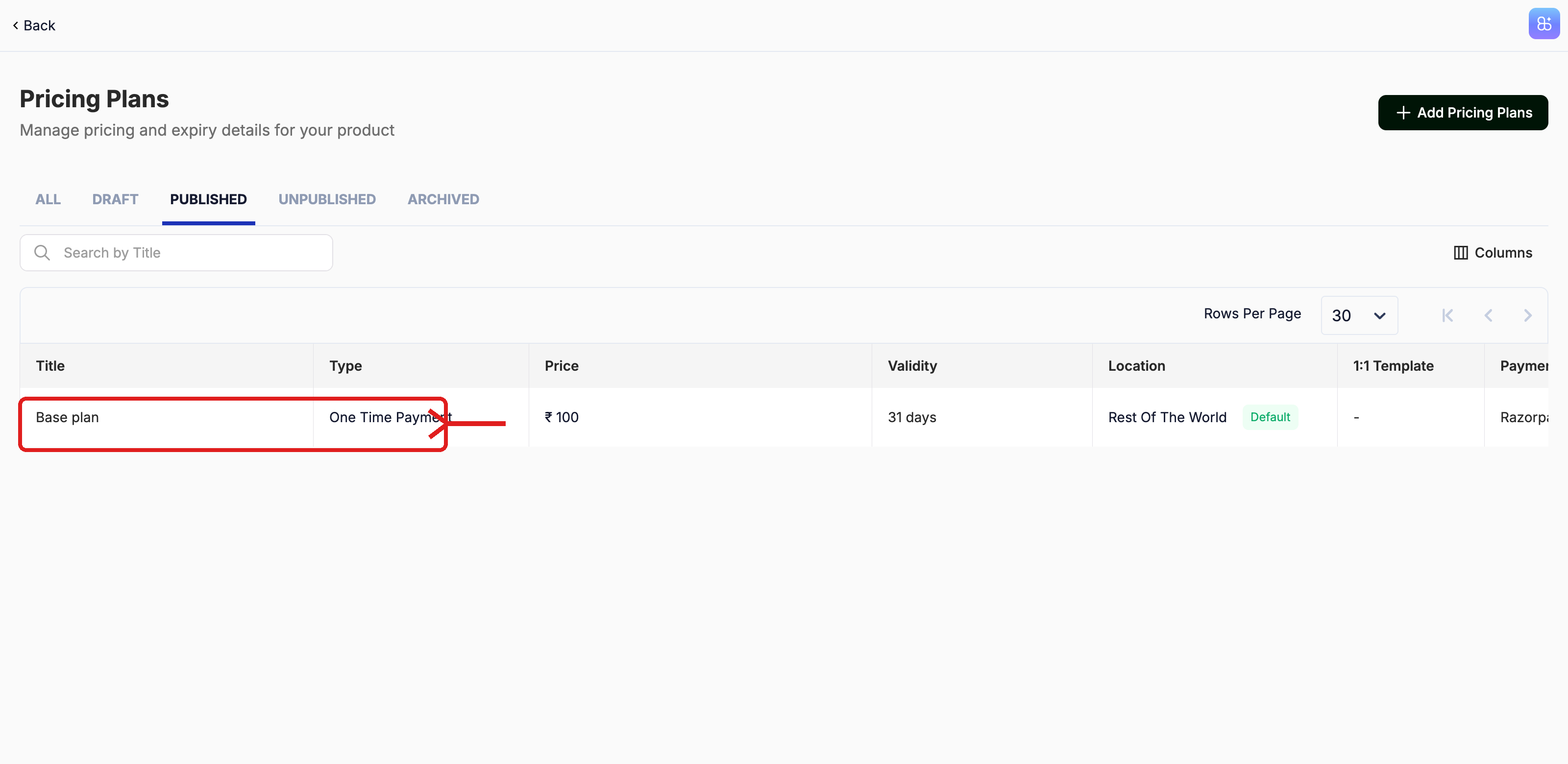
Open the product (for example, a Course) and go to Settings → Pricing Plans. Click the plan you want to edit.
Step 2: Open Advance Options
In the plan editor, open the Advance Options tab. Under Checkout Settings, you'll see PAN Verification, Terms and Conditions and Esign Verification.
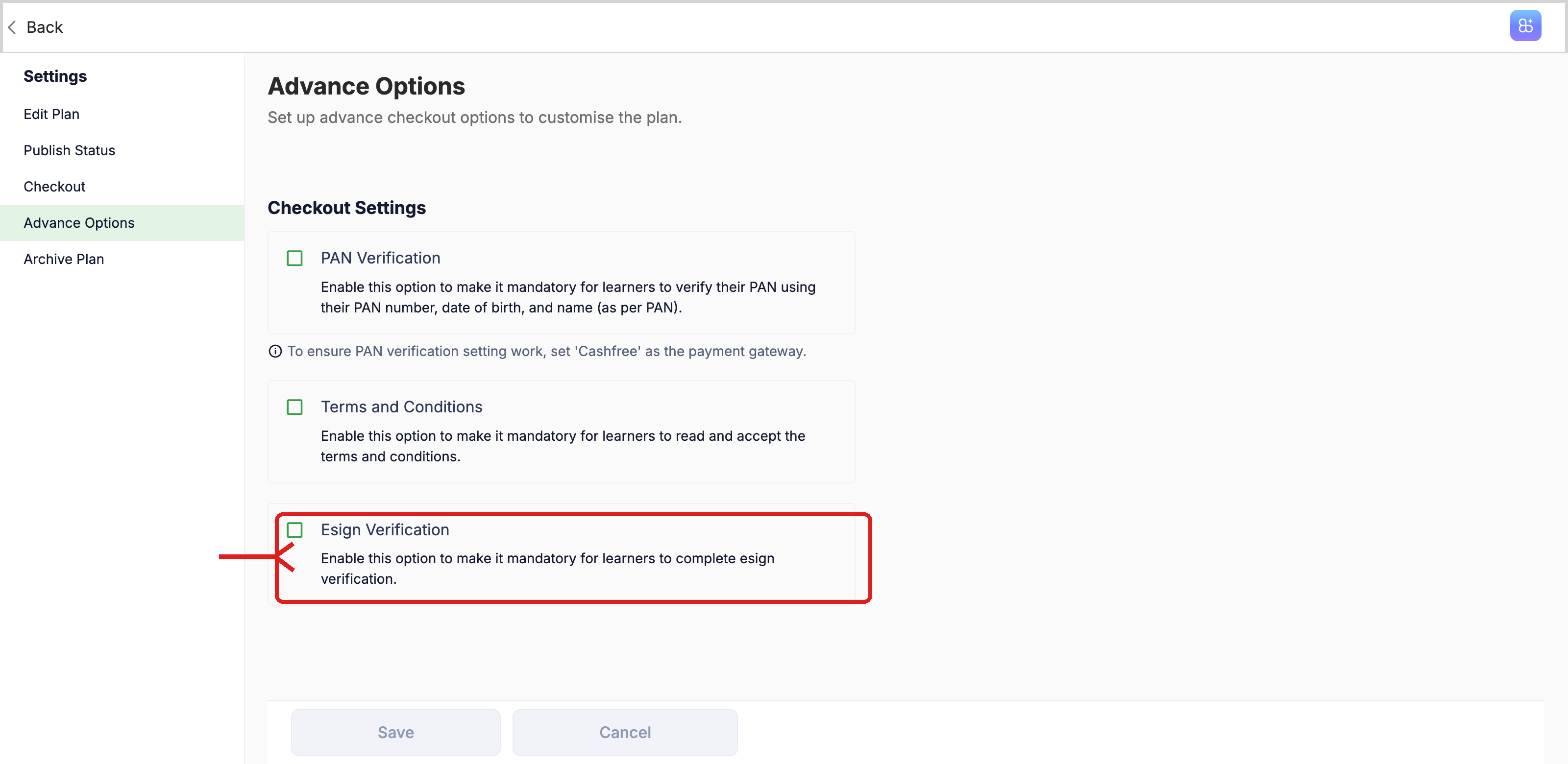
Step 3: Turn on Esign Verification
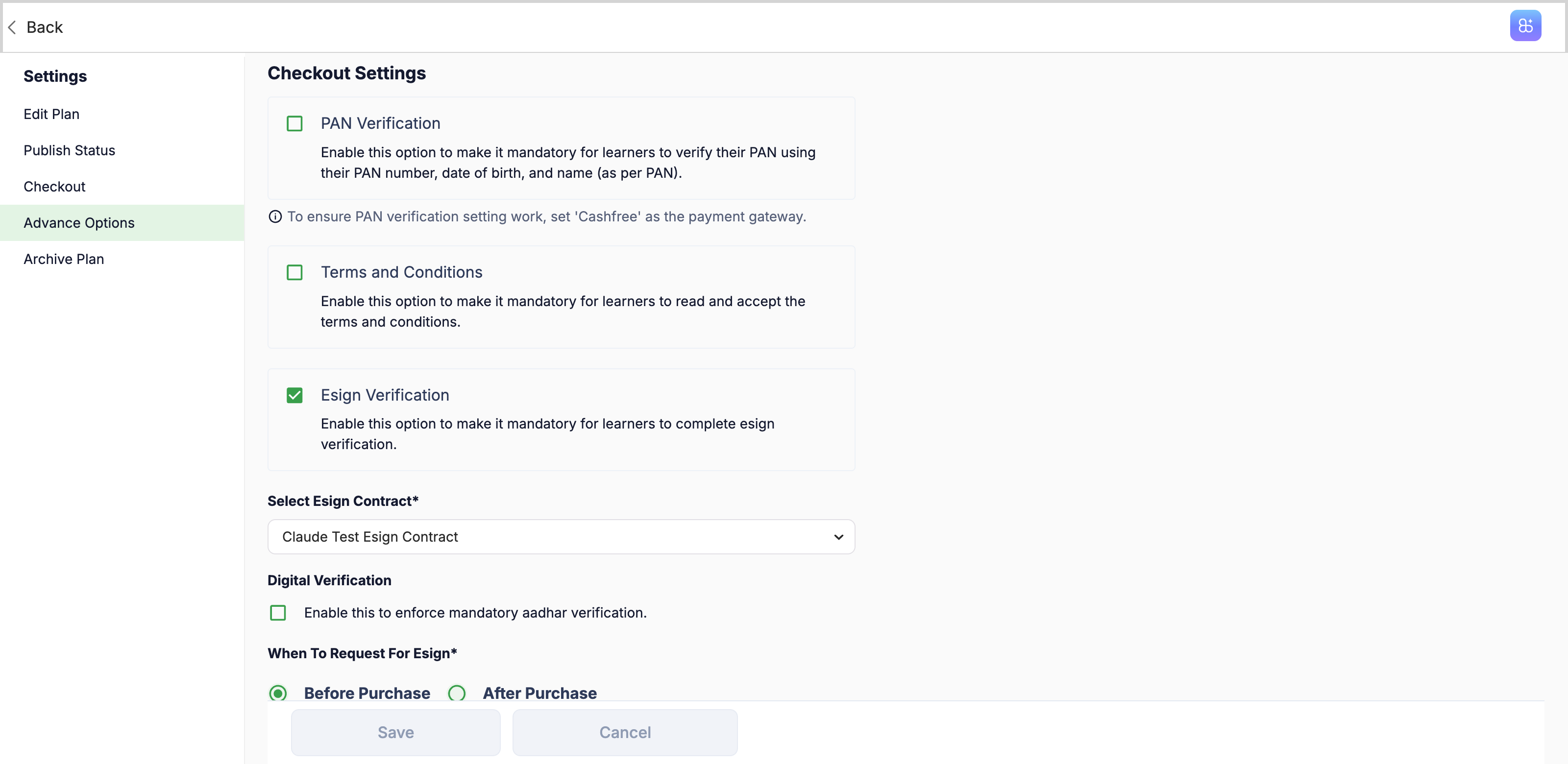
Tick Esign Verification, then set:
- Select Esign Contract: choose your Published contract.
- Digital Verification (optional): makes Aadhaar verification mandatory.
- When To Request For Esign: choose Before Purchase or After Purchase.
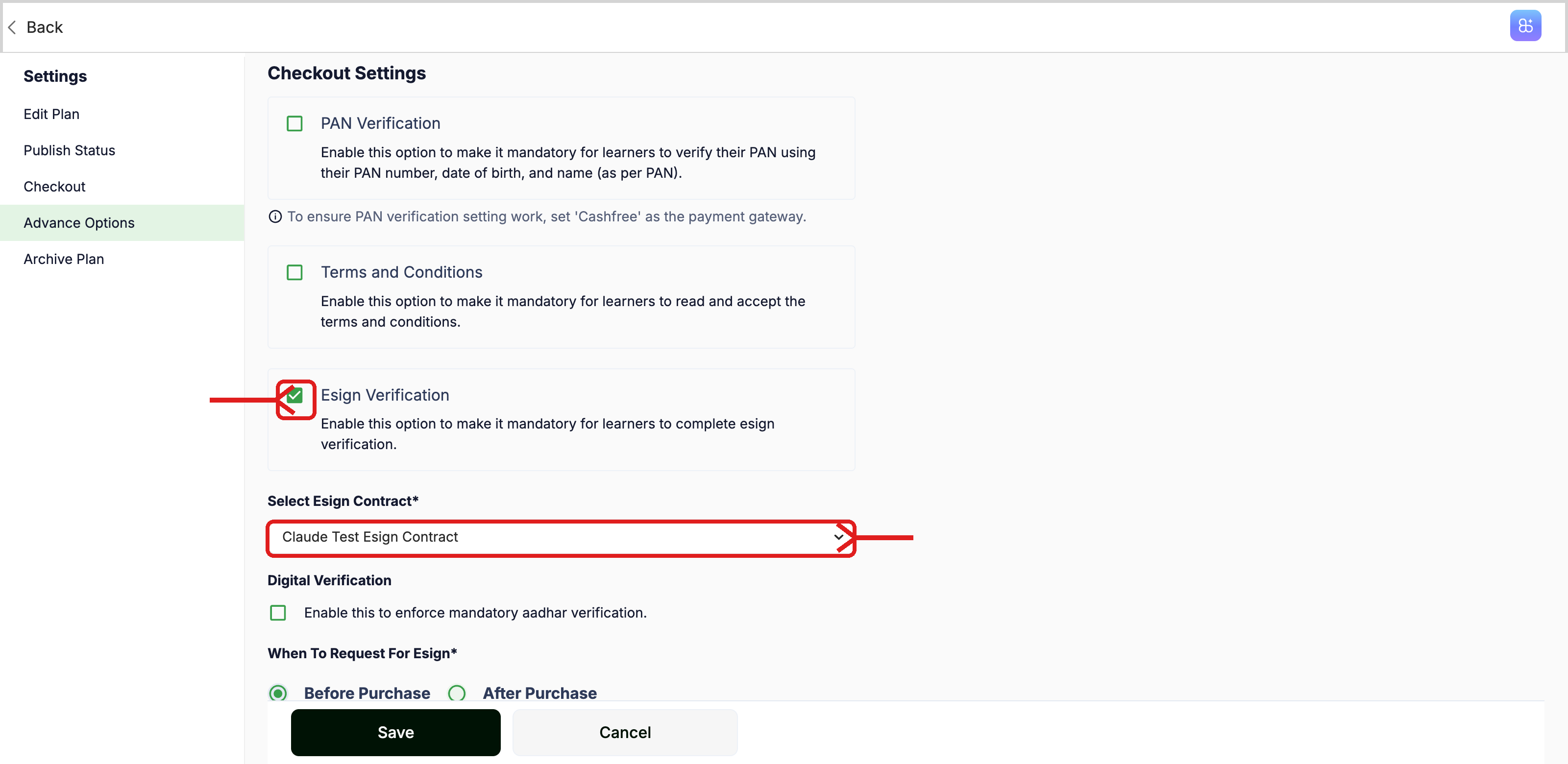
Step 4: Save the plan
Click Save.
Note: Make sure Cashfree is set as the payment gateway. Aadhaar applies only if Digital Verification is ticked.