![Learnyst Logo-25-1.png]](https://support.learnyst.com/hs-fs/hubfs/Learnyst%20Logo-25-1.png?height=40&name=Learnyst%20Logo-25-1.png)
Overview
Learnyst does not have a built-in Conversions API integration. You can still send your institute's key events to Meta (Facebook) Conversions API and Google Ads conversions from Learnyst's servers. To do this, connect Learnyst to Zapier, Pabbly Connect or a custom Webhook.
This article covers what the Conversions API is, why it is more reliable than browser-based tracking, which events Learnyst can send, and how to set up the integration step by step.
What is a Conversions API?
A Conversions API (CAPI) is a server-to-server connection. It sends conversion events, such as a purchase, a signup or a lead, directly to an ad platform like Meta or Google. It does not depend on a script running in the learner's browser.
When a learner buys a course on your Learnyst school, Learnyst sends the event to Zapier, Pabbly or your webhook. That tool then forwards it to Meta or Google with the learner's details, such as email, phone and order value.
Why is the Conversions API better than Tag Manager or Pixel/Event Setup Tool tracking?
Traditional tracking uses Google Tag Manager, the Meta Pixel or Meta's Event Setup Tool. All of these run JavaScript in the visitor's browser, so they can miss conversions for several reasons:
| Challenge | Browser tracking (GTM / Pixel / Event Setup Tool) | Conversions API (server-side) |
|---|---|---|
| Ad blockers & privacy browsers | Scripts are often blocked and events are lost | Not affected, because events are sent from the server |
| iOS 14+ / cookie restrictions | Cookies are limited or cleared, so attribution drops | Matches users by hashed email and phone instead of cookies |
| Payment gateway redirects | The learner may close the tab before the thank-you page loads, so the purchase is not tracked | The purchase is sent when the payment is confirmed in Learnyst |
| Data accuracy | Depends on page load, clicks and button selectors | Uses the real event data from Learnyst (product, amount, learner) |
| Event Match Quality | Often low (cookie-only signals) | Higher, because it uses customer details such as email and phone |
| Maintenance | Breaks when page design or buttons change | Not affected by design changes |
The result: more conversions are attributed to your ads, ad platforms optimise better, and your cost per acquisition is more accurate.
Events Learnyst can send
Learnyst can send the following events to third-party apps through Pabbly, Zapier and Webhooks:
- Purchase: a learner buys a paid product. Best for Purchase conversions.
- Initiate Transaction: a learner starts checkout. Best for InitiateCheckout.
- Signup: a new learner registers. Best for CompleteRegistration or Lead.
- Mobile OTP verified: a learner verifies their mobile number. Useful as a qualified Lead.
- Form submitted: a learner submits a Learnyst form. Best for Lead.
- Free enrollment: a learner enrolls in a free product.
- Trial enrollment: a learner starts a trial.
- Lesson completed: a learner completes a lesson. Useful for engagement audiences.
- Test submit: a learner submits a test.
- Profile updated: a learner updates their profile.
- Custom fields: values from your custom learner fields.
Note: These are the only events Learnyst can send. Page views, add-to-cart and button clicks are not available server-side.
Prerequisites
- Admin access to your Learnyst school
- A Zapier or Pabbly Connect account, or your own webhook endpoint
- For Meta: a Meta Business Manager account with a Pixel (Dataset) and access to Events Manager
- For Google: a Google Ads account with a conversion action created (and/or a GA4 property)
Step 1: Open App Integrations in Learnyst
- Log in to your Learnyst admin dashboard.
- Go to Marketing → Integrations.
- Choose Pabbly, Zapier or Webhooks, depending on the tool you want to use.
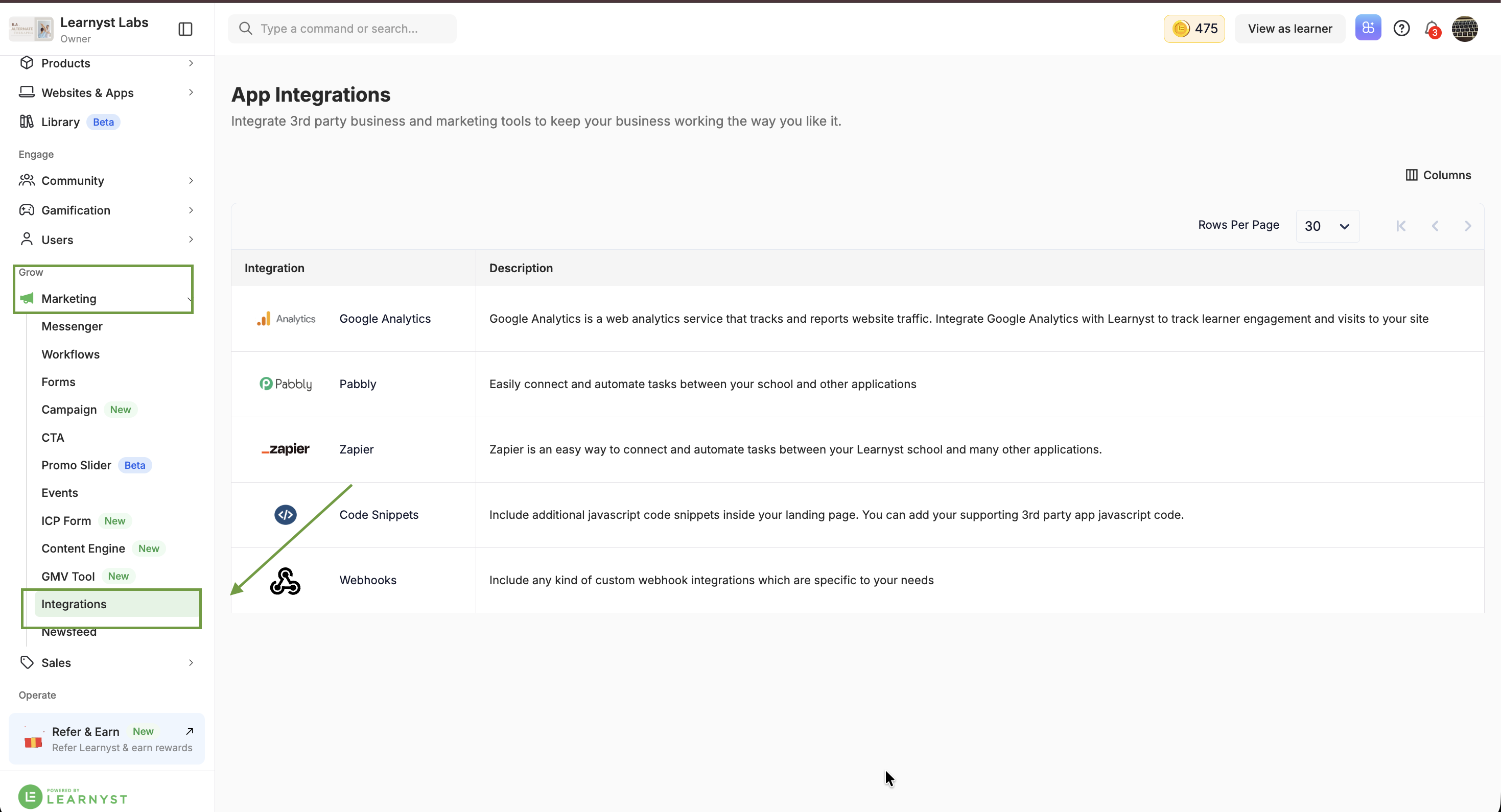
Step 2: Capture Learnyst events in Pabbly, Zapier or Webhook
Option A: Pabbly Connect
- In Pabbly Connect, create a new workflow. For the trigger, choose Webhook (or the Learnyst app, if it is listed) and copy the webhook URL.
- In Learnyst, open Pabbly Integration and click the event you want to send, for example Purchase.
- Paste the Pabbly webhook URL into the event and save. Use Settings for any account-level configuration.
- Make a test purchase or signup in your school so Pabbly receives a sample payload.
Option B: Zapier
- In Zapier, create a new Zap. For the trigger, choose the Learnyst app (or Webhooks by Zapier → Catch Hook).
- Select the trigger event, for example Purchase or Signup, and connect your Learnyst account or copy the Catch Hook URL into the Learnyst Zapier integration.
- Click Test trigger to pull in a sample event from Learnyst.
Option C: Custom Webhook
- In Learnyst, open Webhooks and add your endpoint URL for the events you need.
- Your server receives a JSON payload for each event. It can then call the Meta Conversions API or Google Ads API directly.
Step 3: Send the event to Facebook (Meta) Conversions API
- In Meta Events Manager, select your Pixel/Dataset and go to Settings → Conversions API. Generate an Access Token and note the Pixel ID.
- In Zapier or Pabbly, add an action step: Facebook Conversions (Zapier) or Facebook Conversion API (Pabbly).
- Connect the app with your Pixel ID and Access Token.
- Map the Learnyst fields to Meta's fields:
- Event name: Purchase / Lead / CompleteRegistration / InitiateCheckout
- Event time: event timestamp from Learnyst
- Email and Phone: learner email and mobile. Zapier and Pabbly hash these automatically.
- First name / Last name / Country: if available
- Value and Currency: order amount and currency (for Purchase)
- Content name / ID: product name or ID
- Event ID: order or transaction ID, used for de-duplication with the Pixel
- Action source: website
- Run a test. In Events Manager, open Test Events and confirm the event arrives.
- Turn on the Zap or workflow.
Step 4: Send the event to Google conversions
You can send Learnyst events to Google in two common ways:
Google Ads (offline / enhanced conversions)
- In Google Ads, go to Goals → Conversions and create a conversion action (for example, "Course Purchase") with the source set to import or offline.
- In Zapier or Pabbly, add a Google Ads action, such as Send Offline Conversion.
- Map the conversion action, conversion time, value, currency and learner email or phone (for enhanced conversions). Include the GCLID if you capture it.
- Test the action, then turn on the workflow. Imported conversions can take a few hours to appear in Google Ads.
Google Analytics 4 (Measurement Protocol)
- In GA4, go to Admin → Data Streams → Measurement Protocol API secrets and create a secret.
- In Zapier or Pabbly, add a Webhook / API request action that POSTs the event (for example, purchase or sign_up) to the GA4 Measurement Protocol endpoint with your Measurement ID and API secret.
- Mark the event as a key event in GA4 and import it into Google Ads if needed.
Recommended event mapping
| Learnyst event | Meta event | Google event |
|---|---|---|
| Purchase | Purchase | purchase / Purchase conversion |
| Initiate Transaction | InitiateCheckout | begin_checkout |
| Signup | CompleteRegistration | sign_up |
| Form submitted / Mobile OTP verified | Lead | generate_lead |
| Free enrollment / Trial enrollment | StartTrial or Lead | generate_lead (custom) |
Best practices
- Always send email and phone. They improve match quality significantly.
- Use the order/transaction ID as event_id to avoid double counting with the browser Pixel.
- Send the correct value and currency on purchases so ROAS reporting is accurate.
- Test with a real or test transaction before running ads.
- Make sure your privacy policy says that learner data is shared with advertising partners.
FAQs
Does Learnyst have a native Conversions API integration?
No. Use Zapier, Pabbly or a Webhook to send Learnyst events to Meta or Google.
Can I track page views or add-to-cart server-side?
No. Only the events listed above are available. Continue to use the Pixel or GTM for browsing events.
Should I remove my Meta Pixel?
No. Use both, and de-duplicate with event_id, for the best coverage.