![Learnyst Logo-25-1.png]](https://support.learnyst.com/hs-fs/hubfs/Learnyst%20Logo-25-1.png?height=40&name=Learnyst%20Logo-25-1.png)
1. Connect to Your Institute
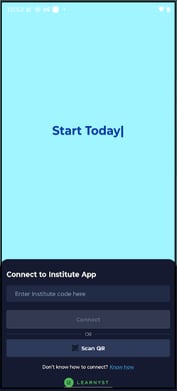
- Open the Learnyfy app.
- Enter the Institute Code provided by your institute.
- Tap Connect.
- Alternatively, tap Scan QR and scan the QR code provided by your institute.
- If you need help connecting, tap Don’t know how to connect? and follow the instructions displayed on the screen.
2. Navigate the Home Screen
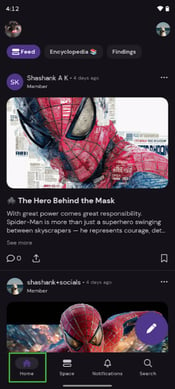
- Open the Home tab from the bottom navigation.
- View the available courses, posts, and other content.
- Tap any available content to open it.
3. Access Courses
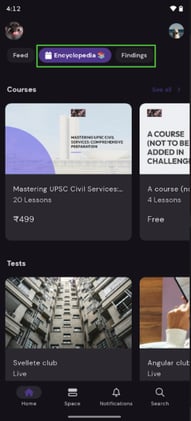
- Open the Home section.
- Go to the Spaces sections or the search section to search the courses.
- Browse the available courses.
- Tap a course to open it.
- Select a lesson to start learning.
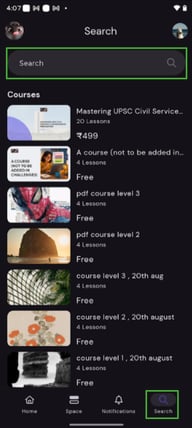
4. Search for a Course
- Tap Search from the bottom navigation.
- Enter the course name or keyword.
- View the search results.
- Tap the required course to open it.
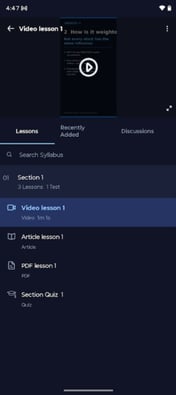
5. Access Course Lessons
- Open the required course.
- View the available lessons.
- Tap a lesson to open it.
- Start the lesson and continue through the available course content.
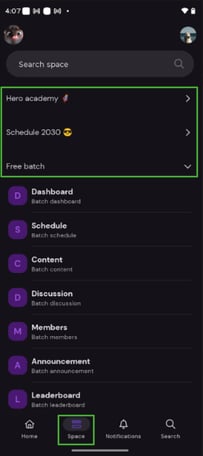
6. Access Spaces
- Tap Space from the bottom navigation.
- View the available Spaces.
- Tap the required Space to open it.
- Select the required section from the Space navigation.
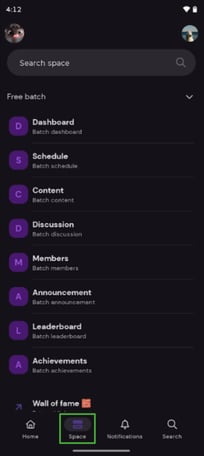
7. Use Space Sections
- Open a Space.
- Tap Dashboard to access the Space dashboard.
- Tap Schedule to view scheduled activities.
- Tap Content to access learning content.
- Tap Discussion to view and participate in discussions.
- Tap Members to view Space members.
- Tap Announcement to view announcements.
- Tap Leaderboard to view the leaderboard.
- Tap Achievements to view achievements.
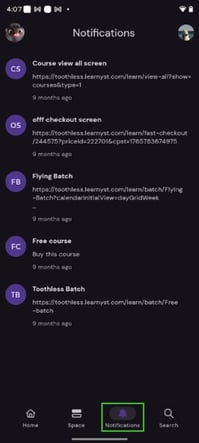
8. View Notifications
- Tap Notifications from the bottom navigation.
- View the available notifications.
- Tap a notification to open the related content.
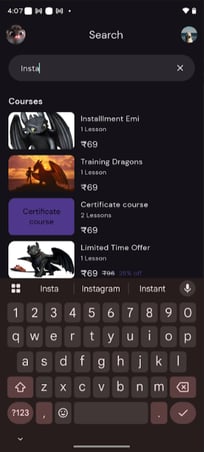
9. Search Content
- Tap Search from the bottom navigation.
- Enter the name or keyword of the content you want to find.
- View the available results.
- Tap the required result to open it.
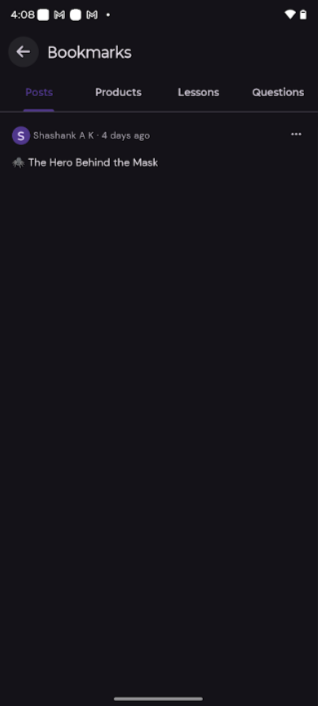
10. Access Bookmarks
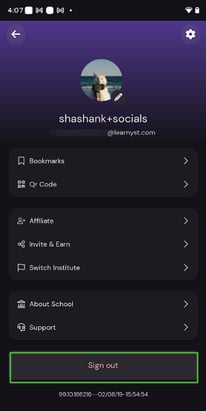
- Tap Profile.
- Tap Bookmarks.
- Select the required category.
- Open the saved content.
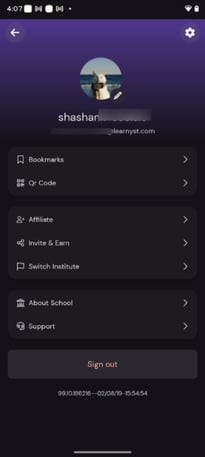
11. Access Your Profile
- Tap Profile from the bottom navigation.
- View the available profile options.
- Select the required option.
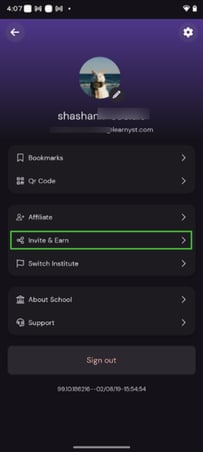
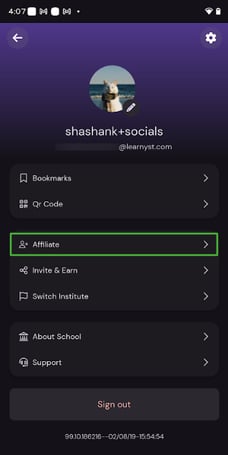
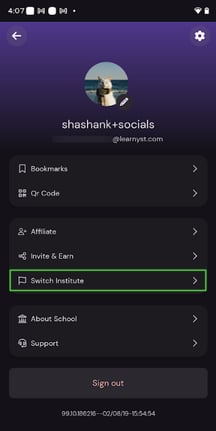
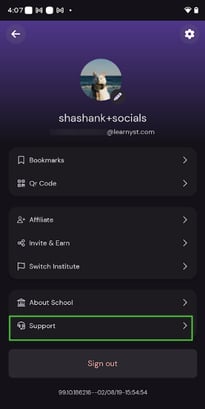
The Profile section includes Bookmarks, QR Code, Affiliate, Invite & Earn, Switch Institute, About School, Support, Settings, and Sign out.
12. Use Invite & Earn
- Open Profile.
- Tap Invite & Earn.
- View your referral code and referral details.
- Tap Share & Invite.
- Share your referral link with others.
13. Join the Affiliate Program
- Open Profile.
- Tap Affiliate.
- View the affiliate program details.
- Tap the available option to join the affiliate program.
- Follow the instructions displayed on the screen.
14. Switch Your Institute
- Open Profile.
- Tap Switch Institute.
- Confirm the institute switch.
- Enter the new institute code or use the available QR scanning option.
- Complete the connection process.
15. Contact Support
- Open Profile.
- Tap Support.
- Select the type of issue you want to report.
- Select Technical Issue for technical problems.
- Select Content Issue for issues related to course or learning content.
- Follow the instructions displayed on the screen to submit the issue.
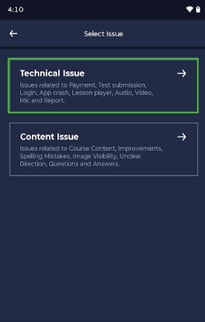
16. Report a Technical Issue
- Open Profile → Support.
- Select Technical Issue.
- Select the relevant issue.
- Follow the instructions to submit the issue.
Technical issues include problems related to Payments, Test Submission, Login, App Crash, Lesson Player, Audio, Video, Microphone, and Reports.
17. Report a Content Issue
- Open Profile → Support.
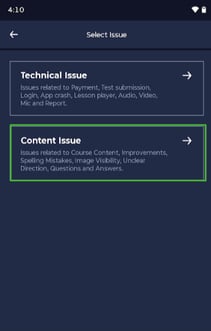
- Select Content Issue.
- Select the relevant issue.
- Follow the instructions to submit the issue.
Content issues include Content Improvement, Spelling Mistake, Image Not Visible, Unclear Directions, and Question & Answer.
18. View About School
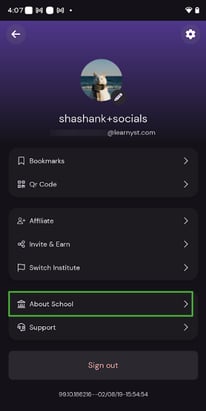
- Open Profile.
- Tap About School.
- View the information available about your institute.
19. Open Settings
- Open Profile.
- Tap Settings.
- Select the setting you want to manage.
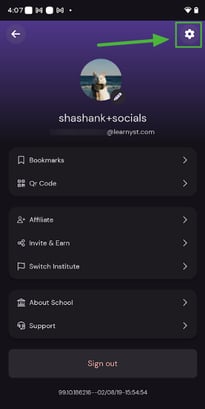
The Settings section includes Reset Password, Appearance, Languages, Video Download Quality, Download Location, Payment and Subscription, Invoices, Addresses, and Marketing Email Notifications.
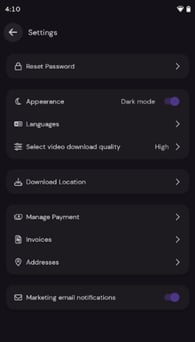
20. Reset Your Password
- Open Profile → Settings.
- Tap Reset Password.
- Enter the required information.
- Follow the instructions displayed on the screen to reset your password.
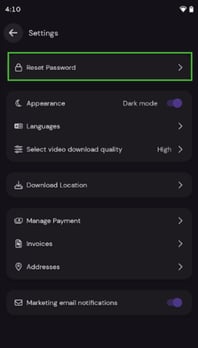
21. Change Appearance Mode
- Open Profile → Settings.
- Tap Appearance.
- Select the available appearance option.
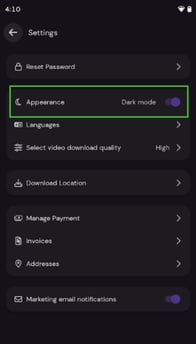
22. Change Language
- Open Profile → Settings.
- Tap Languages.
- Select the required language.
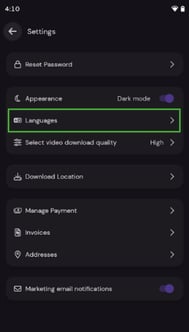
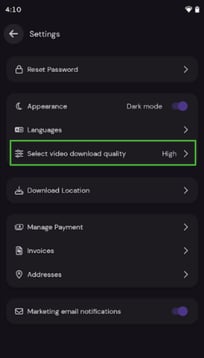
23. Change Video Download Quality
- Open Profile → Settings.
- Tap Select video download quality.
- Select the required video quality.
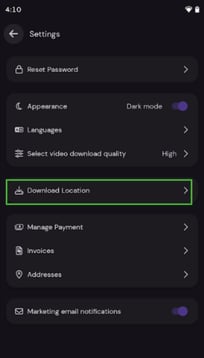
24. Change Download Location
- Open Profile → Settings.
- Tap Download Location.
- Select the available download location.
25. Manage Payment and Subscription
- Open Profile → Settings.
- Tap Payment and Subscription.
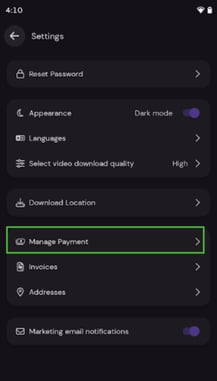
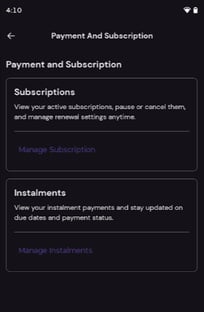
- Select Manage Subscription to manage your subscription.
- Select Manage Instalments to view and manage instalment payments.
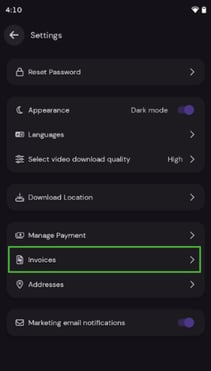
26. View Invoices
- Open Profile → Settings.
- Tap Invoices.
- View the available invoices.
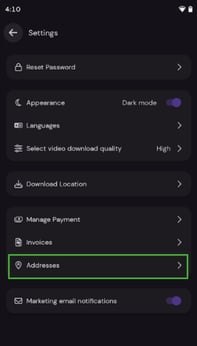
27. Manage Addresses
- Open Profile → Settings.
- Tap Addresses.
- View or manage your Billing Address and Shipping Address.
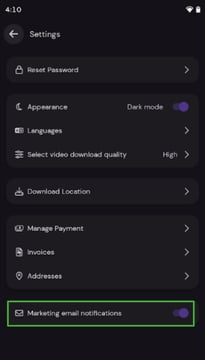
28. Manage Marketing Email Notifications
- Open Profile → Settings.
- Tap Marketing Email Notifications.
- Enable or disable the available notification preference.
29. Sign Out
- Open Profile.
- Scroll to the bottom of the screen.
- Tap Sign out.
- Confirm the action if prompted.