- To create a one-on-one tutoring Go to the contents and choose the 1:1 tutoring option.
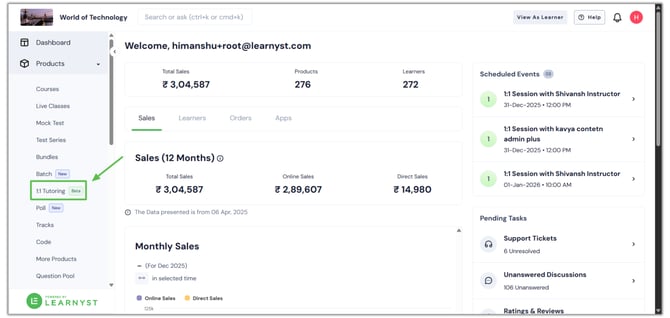
- Then press the "Create" button.
.png?width=670&height=318&name=11%20tutoring%20demo%20article%20(1).png)
- Now choose the Booking Type after entering the title and description.
.png?width=670&height=318&name=11%20tutoring%20demo%20article%20(3).png)
- Demo: The learner can choose the time and date. (Only one Demo 1:1 tutoring can be created.)
- Package: Only the administrator can choose the time and date once the student purchases the one-on-one tutoring. You can make several one-on-one tuition sessions.
- I've now chosen the Demo kind. Click the "Create" button after making your selection.
- The 1:1 tutoring demo has now been created.
- Now, click the Instructors and then the Add instructors option to choose the instructors for this one-on-one.
.png?width=670&height=318&name=11%20tutoring%20demo%20article%20(2).png)
- Next, choose the instructors.
.png?width=670&height=318&name=11%20tutoring%20demo%20article%20(4).png)
- To set up the instructor's availability, navigate to the availability section and choose the instructor.
.png?width=670&height=318&name=11%20tutoring%20demo%20article%20(5).png)
- You can now Set up the availability. Additionally, instructors and super admins can change the time and date of their unavailability and click "Save."
.png?width=670&height=318&name=11%20tutoring%20demo%20article%20(6).png)
- Then, click the Diagnostic tests and choose the particular mock test to determine the learner's strengths and weaknesses.
.png?width=670&height=318&name=11%20tutoring%20demo%20article%20(7).png)
- After everything is configured, go to Settings to adjust price, duration, FAQs, and other details.
.png?width=670&height=318&name=11%20tutoring%20demo%20article%20(9).png)
- Once everything is set up, you can publish the demo 1:1 tutoring.
.png?width=670&height=318&name=11%20tutoring%20demo%20article%20(10).png)
- So, the student may now reserve a time slot and pay for 1:1 tuition.
- Once a student has purchased a 1:1 tutoring session, the administrator may view the learner's booking information on the home page and assign an instructor.
.png?width=670&height=318&name=11%20tutoring%20demo%20article%20(12).png)
-
After an instructor is assigned, the session moves to the Upcoming tab.
-
Admins and instructors can click Join Now to start the live class.
.png?width=670&height=318&name=11%20tutoring%20demo%20article%20(14).png)
-
If an instructor is not assigned, the session will be flagged under Urgent Action for immediate attention.
.png?width=670&height=318&name=11%20tutoring%20demo%20article%20(15).png)
English
![Learnyst Logo-25-1.png]](https://support.learnyst.com/hs-fs/hubfs/Learnyst%20Logo-25-1.png?height=40&name=Learnyst%20Logo-25-1.png)