![Learnyst Logo-25-1.png]](https://support.learnyst.com/hs-fs/hubfs/Learnyst%20Logo-25-1.png?height=40&name=Learnyst%20Logo-25-1.png)
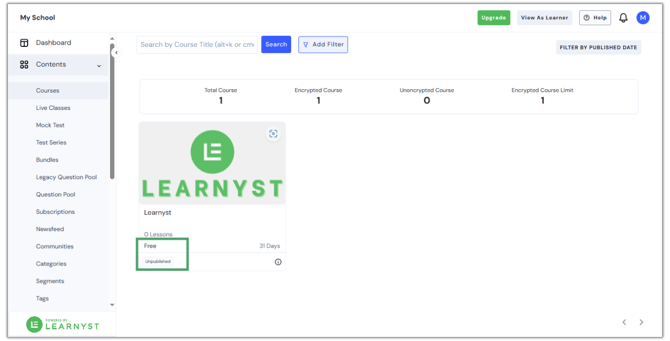
- Begin by selecting the bundle you wish to publish. By default, it remains unpublished and is marked as free since the pricing plan is not yet published.
- Before proceeding, ensure that there is at least one section with some content in your bundle.
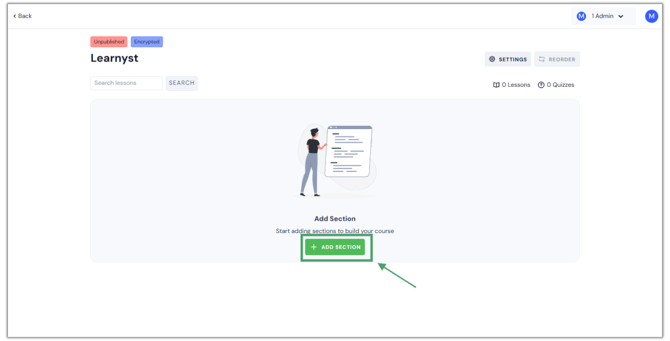
If a bundle has a section without any content within the section itself, the course will be published but learners will not be able to see it.
- To publish a bundle, publish a pricing plan for the Bundle. You can create either a new pricing plan or publish the default pricing plan.
- Once the pricing plan has been published, you can access the Course Settings.
- Navigate to Publish Course under the Publish or Delete Course label and click on it.
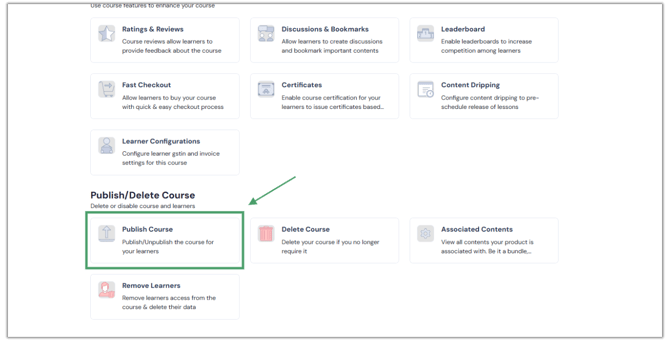
- Select the Live Checkbox then click on Publish to make the bundle available for learners to enroll and access.
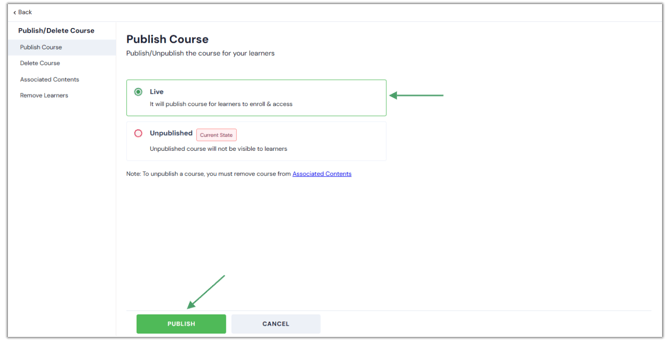
- Similarly, you can unpublish a bunsle by clicking on Unpublish.
Before unpublishing a bundle, ensure it is removed from all associated content, such as courses, subscriptions, etc. Otherwise, the bundle cannot be unpublished. You can click on the Associated contents link to view all the associations your bundle has.