- To set up the answer view and quiz shuffling feature, go to the Products > Mock tests > Selected Mock test.
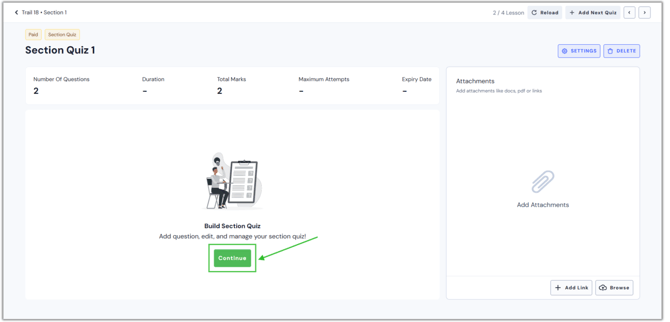
- Click the "Settings" button.
.png?width=670&height=322&name=pub%20quiz%20(1).png)
- Choose the Answer Configurations option located below the features.
.png?width=670&height=318&name=Learnyst%20mock%20test%20settings%20(3).png)
- Once you reach this page, you can activate the answer view and answer shuffle features.
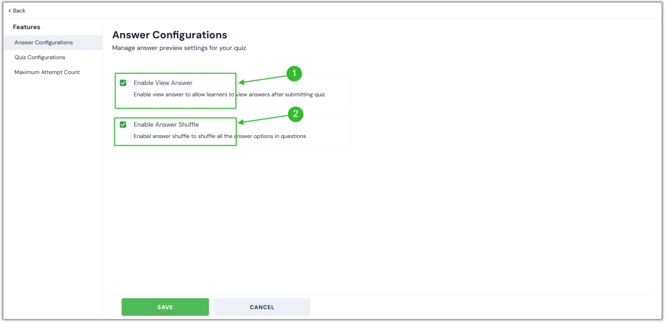
1. Enable View Answer: This function allows your students to see the right answer of the quiz after they've submitted it.
2. Enable Answer Shuffle: If this option is enabled, each participant will view the answer options for a particular question in a different order. - Once you've completed the changes, click the "Save" button.
.png?width=670&height=322&name=ans%20con%20(1).png)
- You can update your quiz's answer configuration by following these steps.
English
![Learnyst Logo-25-1.png]](https://support.learnyst.com/hs-fs/hubfs/Learnyst%20Logo-25-1.png?height=40&name=Learnyst%20Logo-25-1.png)