![Learnyst Logo-25-1.png]](https://support.learnyst.com/hs-fs/hubfs/Learnyst%20Logo-25-1.png?height=40&name=Learnyst%20Logo-25-1.png)
-
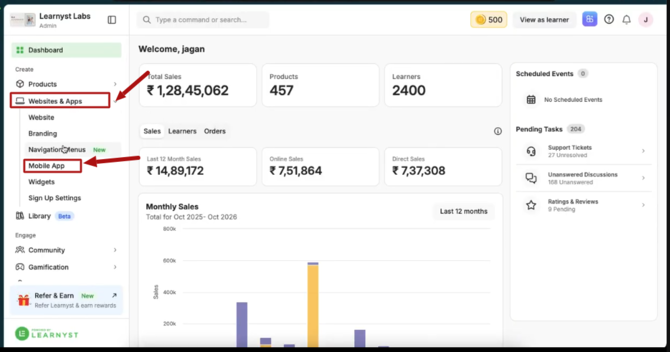
To set up branded mobile app review, Log in to your Learnyst account and navigate to Websites & Apps > Mobile App
-
Mobile App → Settings.
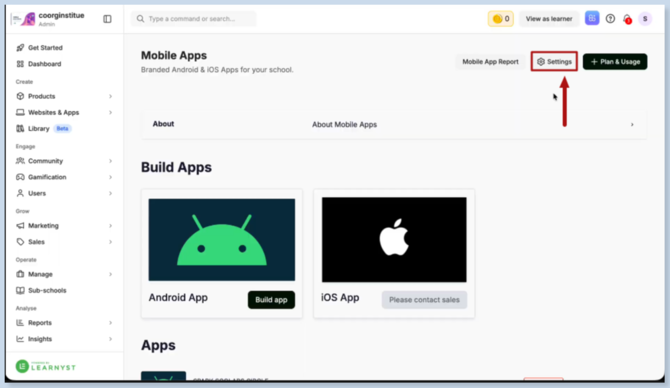
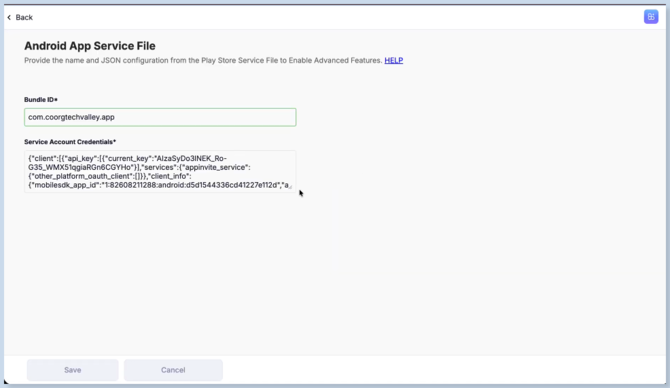
- Here we need to update service account credentials
-
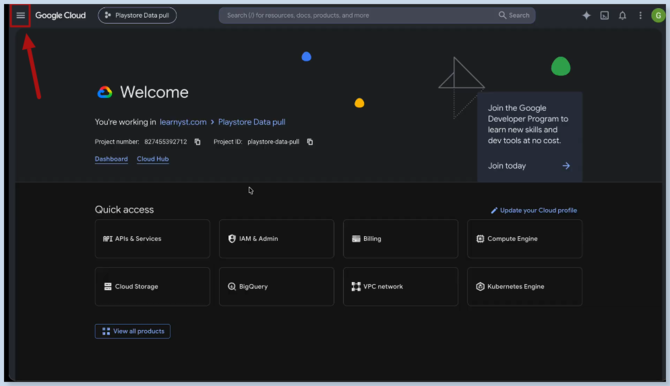
Open the Google Cloud Console and select the project associated with your mobile app.
-
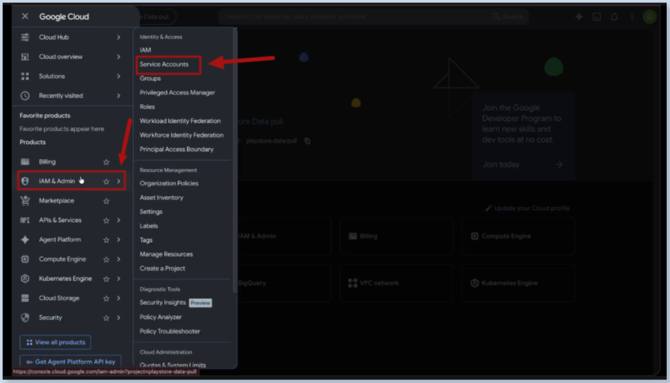
Click the three-line menu icon.
-
Navigate to IAM & Admin → Service Accounts.
-
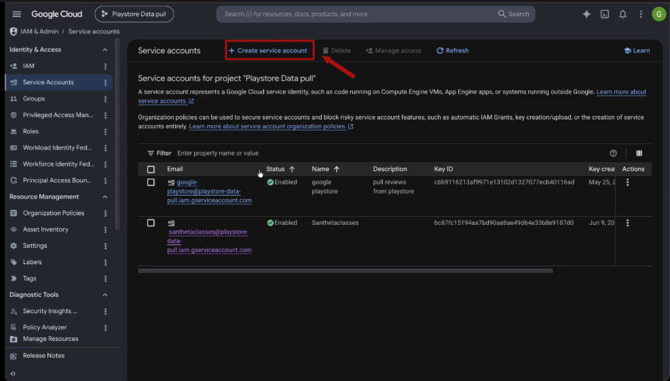
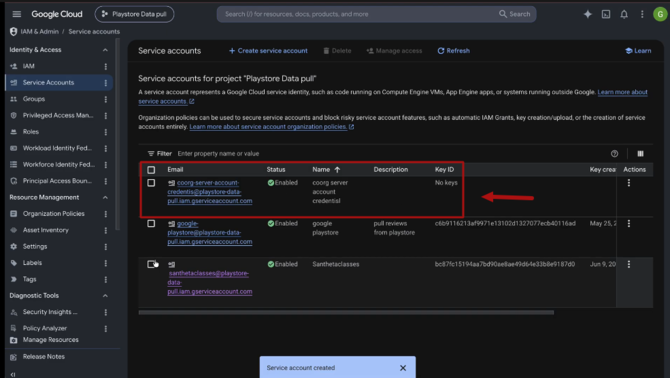
Click Create Service Account,
-
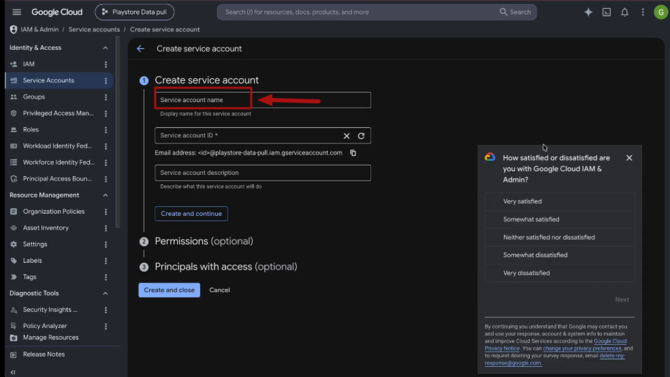
Enter your app name as the service account name, and click Create and Continue.
-
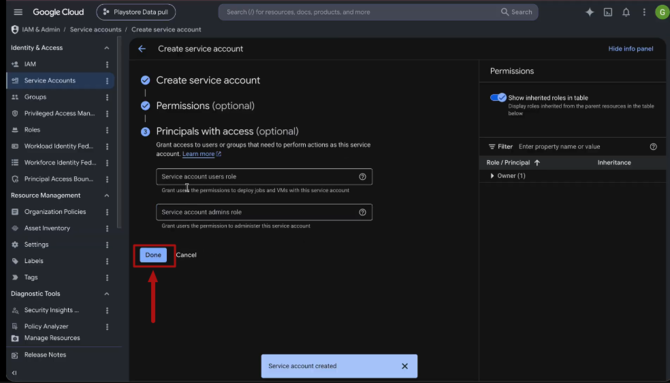
You can skip the optional permissions step by clicking Continue, then click Done.
-
Open the service account you just created
-
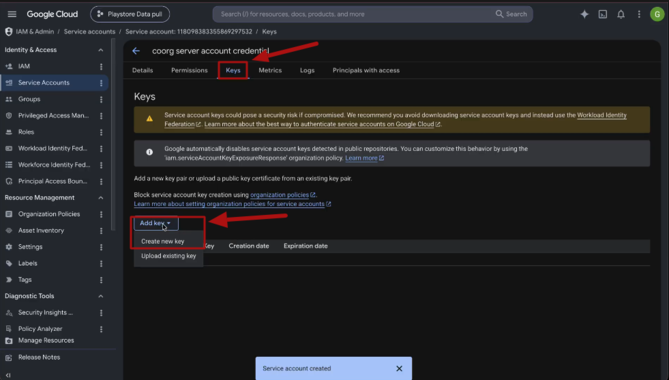
Navigate to the Keys tab. Click Add Key → Create New Key,
-
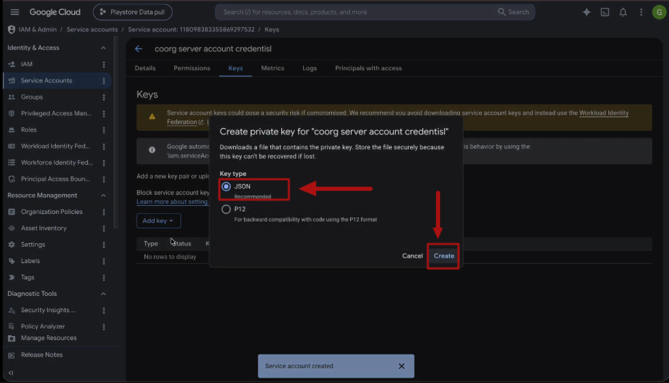
Select JSON, and click Create.
-
A JSON file containing your service account credentials will be downloaded. Open the file and copy its contents.
-
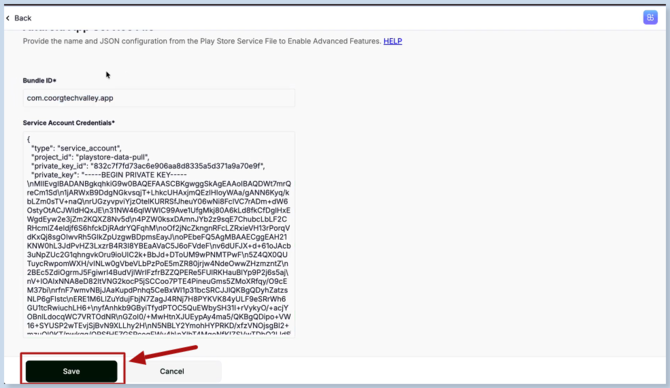
Return to your Learnyst account and navigate to Mobile App → Settings. Paste the copied credentials into the Service Account Credentials field and click Save.
-
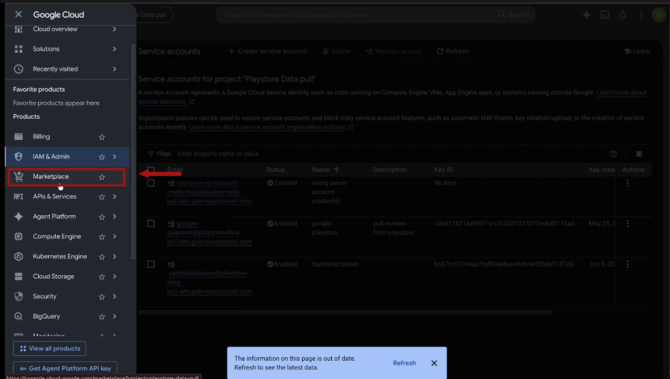
Then, Open the Google Cloud Console and click the three-line menu icon. Navigate to the Market place, depending on your console interface.
-
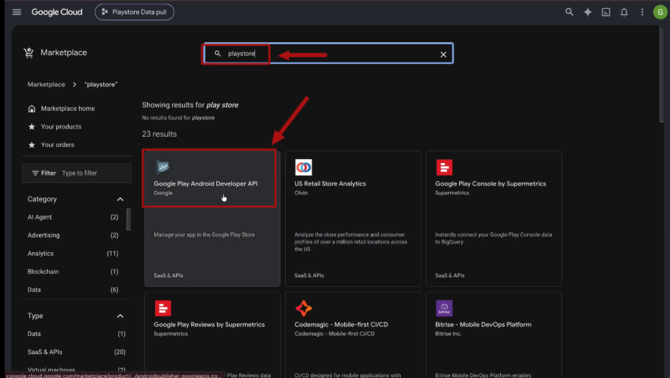
Search for the Google Play Android Developer API and open it.
-
Click Enable.
-
After enabling the API, make sure the service account you created is configured correctly and is associated with the same Google Cloud project.
-
Grant Access to the Service Account in Google Play Console
-
Open the downloaded JSON credentials file and locate the service account's email address. This is typically listed as
client_email. Copy this email address to use it as the service account identifier.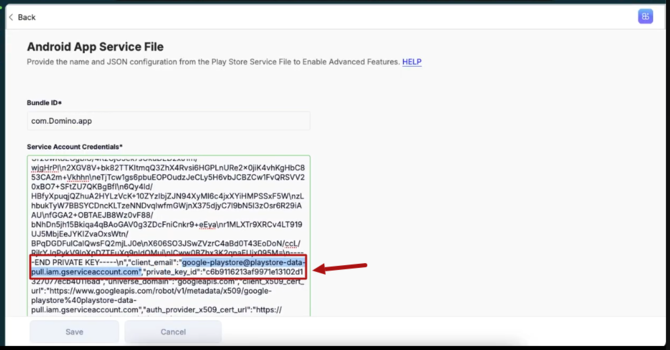
-
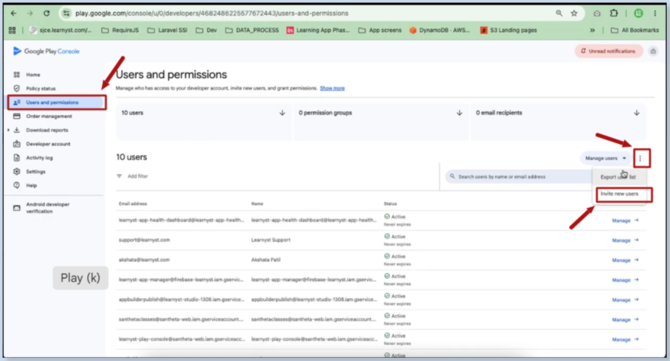
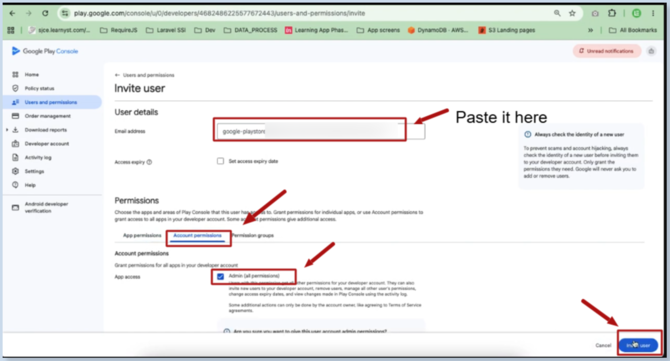
Log in to your Google Play Console and select Users and permissions.
-
Click the three-dot menu and select Invite new user.
-
Paste the service account email address into the Email address field. Open the Account permissions tab and enable Admin (all permissions), as required by your setup. Click Invite users, then confirm the invitation by clicking Invite User in the pop-up.
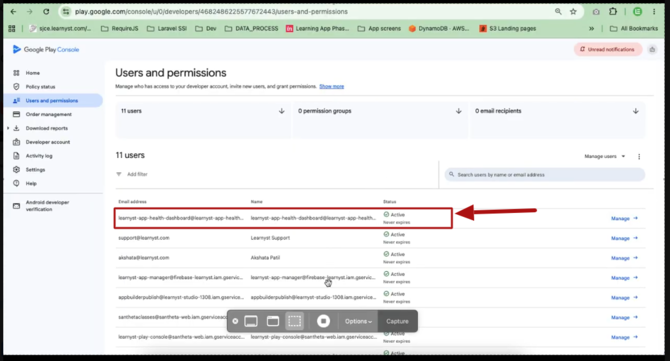
- Ensure the invitation is accepted or the permissions are active before proceeding.
- View and Manage Mobile App Reviews
- Once the configuration is complete and the required permissions are active, Learnyst can access the relevant Google Play Store review information for your branded mobile app.
- To view your app's ratings and reviews, log in to your Learnyst admin dashboard and navigate to Reports → App Performance.
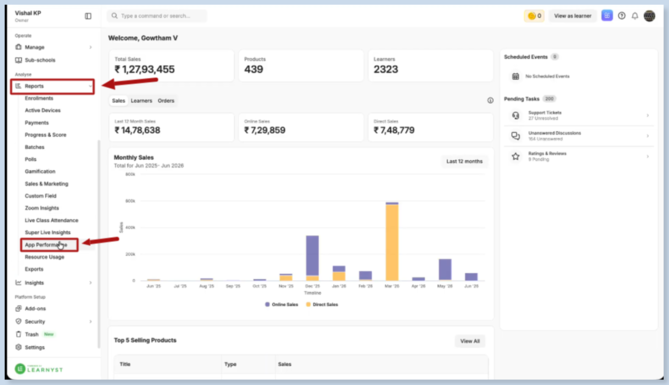
- Here, you can review your mobile app's ratings and reviews and manage them using the available options.