![Learnyst Logo-25-1.png]](https://support.learnyst.com/hs-fs/hubfs/Learnyst%20Logo-25-1.png?height=40&name=Learnyst%20Logo-25-1.png)
The Usage Dashboard shows how many learners are active in your school and how much of your plan you have used, including storage, bandwidth, video hours and other plan resources. Check it regularly so you can upgrade your plan or clean up content before you reach a limit.
Open the Usage Dashboard
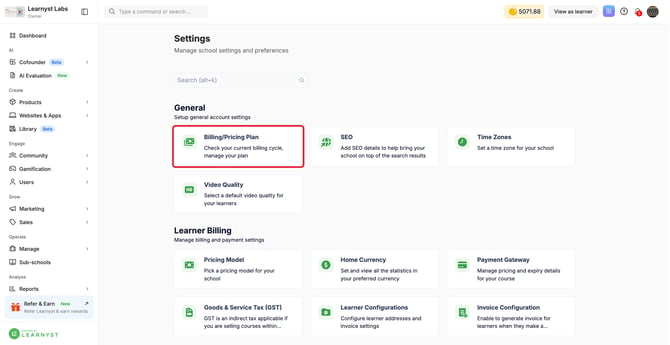
- In your admin dashboard, go to Settings and click Billing/Pricing Plan.
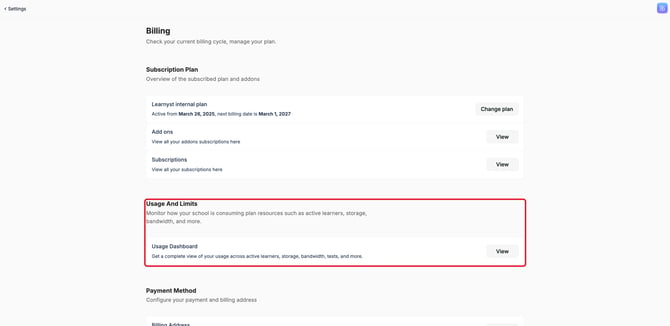
- Under Usage And Limits, click View next to Usage Dashboard. The Usage Insights page opens.
Read the Usage Insights page
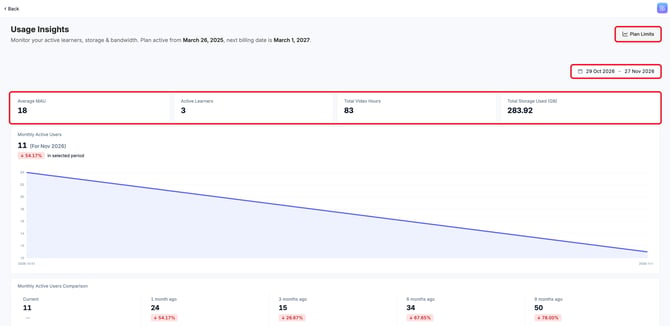
The top of the page shows your plan start date and your next billing date. Use the date range picker on the right to choose the period you want to see.
The four cards at the top show:
- Average MAU: the average number of monthly active users in the selected period.
- Active Learners: the number of learners who were active in the selected period.
- Total Video Hours: the video hours counted towards your plan.
- Total Storage Used (GB): the storage your content uses.
Average MAU and Active Learners change with the date range you select. Total Video Hours and Total Storage Used always show your current totals.
Below the cards you will find these sections:
- Monthly Active Users: the number of monthly active users for the latest month in the selected period, the percentage change in the selected period, and a chart of the trend.
- Monthly Active Users Comparison: your current monthly active users compared with 1, 3, 6 and 9 months ago, with the percentage change for each.
- Cumulative Usages: a running total from 12 months back for Bandwidth (GB), Test Submits, DRM Tokens, Message Sends, Email Validations, Total Learners and Content Storage (GB).
- Video Hours: a chart of your video hours and the percentage change in the selected period.
- Storage Breakdown Metrics: what is using your storage, shown as Products, Video Transcoding (Hrs) and Questions.

How active learners are counted
Who counts: a learner counts as active when they have at least one learning activity in the last 30 days. This is a rolling 30-day window, not a calendar month, so the count updates every day as older days drop off.
Who doesn't count:
- Total learners is a separate number. It includes every learner in your school, whether they are active or not.
- Archived learners with no activity in the last 30 days don't count.
- Visitors to your website don't count.
Check your plan limits
- On the Usage Insights page, click Plan Limits at the top right.
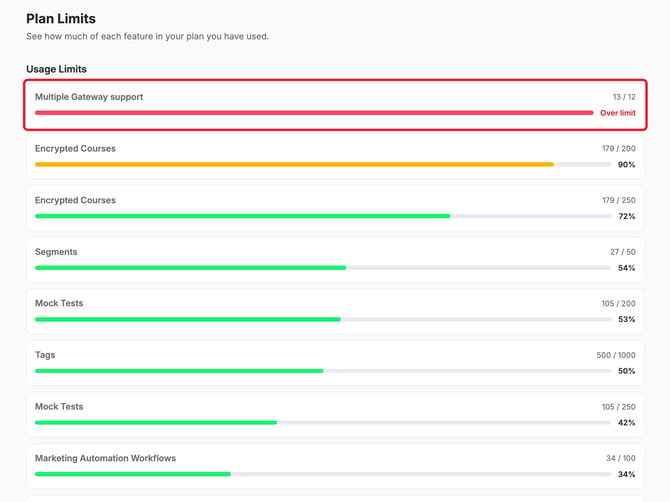
- The Plan Limits page shows how much of each feature in your plan you have used.
Under Usage Limits, each feature shows what you have used against your plan limit (for example, 179 / 200), the percentage used and a progress bar. Features closest to their limit are listed first. When you go past a limit, the bar turns red and shows Over limit.
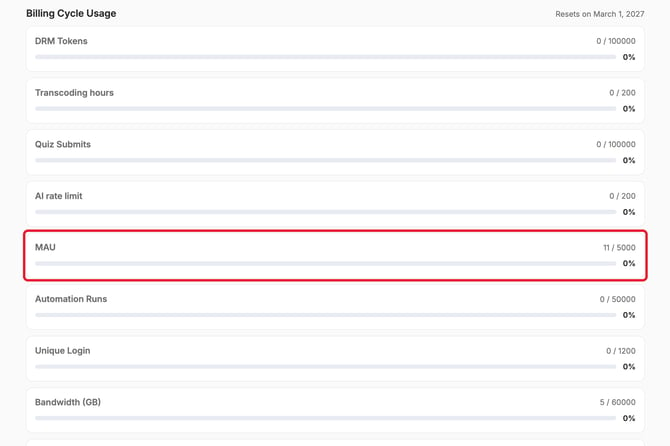
Under Billing Cycle Usage, you can see limits that reset with your billing cycle. The reset date is shown at the top right of the section. These include MAU (monthly active users), Bandwidth (GB), DRM Tokens, Transcoding hours, Quiz Submits, AI rate limit, Automation Runs, Unique Login, Visitors, Web & Mobile Push notifications, Marketing Emails, Manual & Bulk learner import and Analytics Events.
At the end of the page, Features Included lists every feature that is part of your plan.
Good to know
- Your limits depend on your plan. To raise them, go to Settings > Billing/Pricing Plan and click Change plan.
- The numbers in the screenshots are from a sample school. Your dashboard shows your own usage and your own plan limits.
If you have questions about your plan limits, contact us at support@learnyst.com.