![Learnyst Logo-25-1.png]](https://support.learnyst.com/hs-fs/hubfs/Learnyst%20Logo-25-1.png?height=40&name=Learnyst%20Logo-25-1.png)
Steps to Update Space Settings
Step 1: Open the Socials Dashboard
Go to the Admin Dashboard > View As Learner > Socials Dashboard and locate the Space that needs to be updated.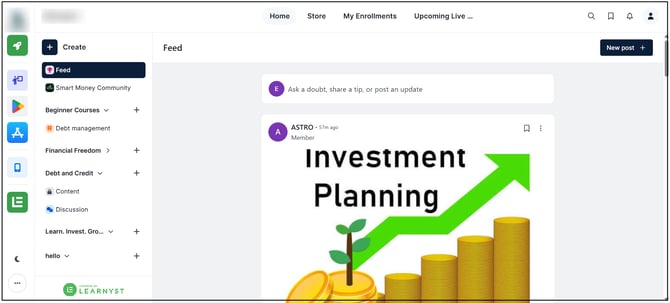
Step 2: Open Space Settings
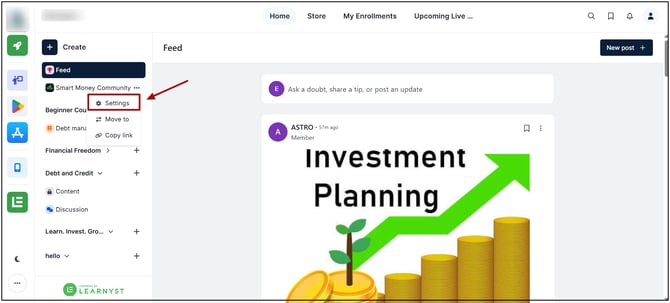
Click the three-dot menu on the Space and select Settings.
Step 3: Update Space General Details
Under the General section, update the Icon, Name, Description, or Linked Course as required.

Step 4: Update Space Visibility Details
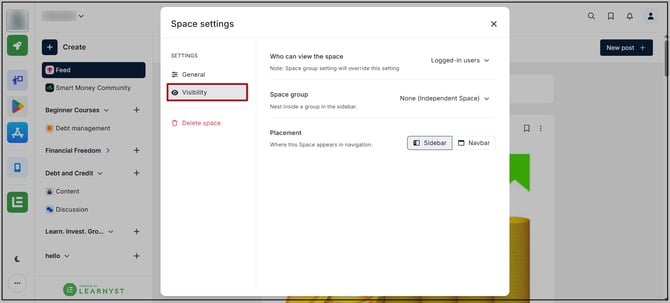
Under the Visibility section, update the Who can view the space, Space group, and Placement.
Save the changes to update the Space.
The updated icon, name, description, or linked course will be applied to the Space. These changes will be reflected wherever the Space is displayed.