![Learnyst Logo-25-1.png]](https://support.learnyst.com/hs-fs/hubfs/Learnyst%20Logo-25-1.png?height=40&name=Learnyst%20Logo-25-1.png)
-
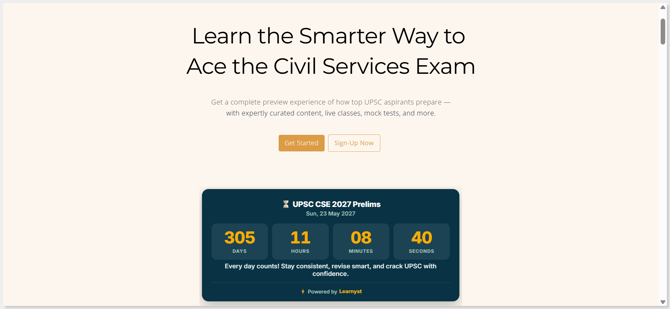
To update an exam countdown timer, navigate to the Learnyst Exam Countdown Timer landing page.
-
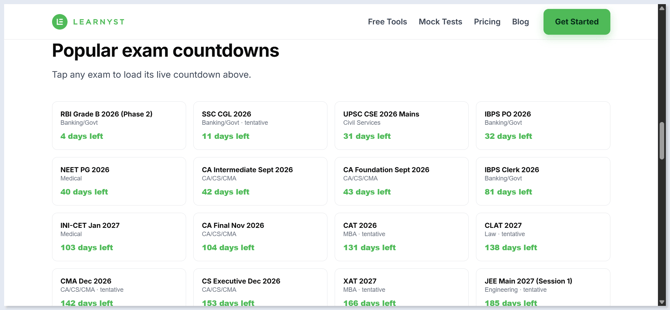
Choose the exam countdown you want to embed on your website.
-
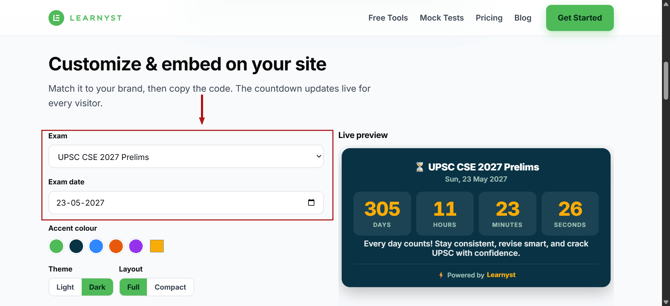
Edit the Exam Name and Exam Date as required.
-
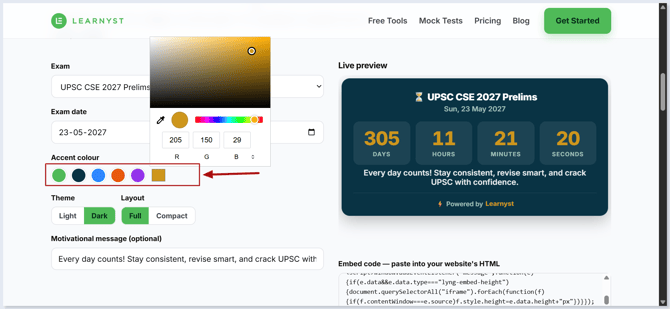
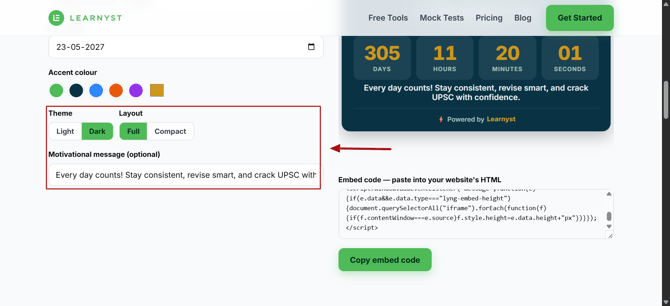
Select a color that matches your academy's branding.
-
Choose your preferred theme and layout for the countdown timer.
-
If you'd like to motivate your learners, enter a message in the Motivational Message field
-
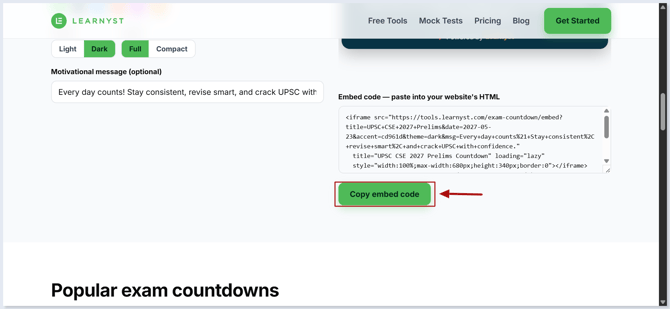
Once you've customized the countdown timer, click Copy Embed Code.
-
Now, to add this HTML code in your website, go to your Website Builder or CTA Builder in Learnyst.
-
Open the page where you want to display the countdown timer.
-
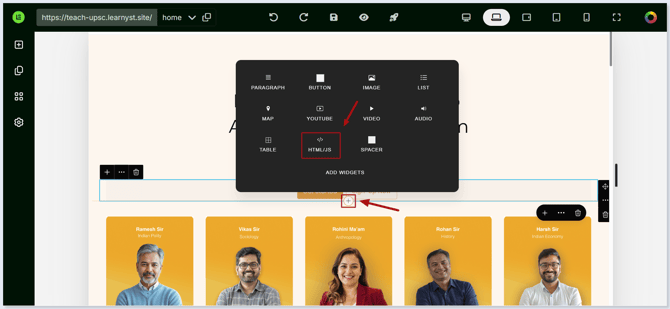
Click the + icon and select the HTML block.
-
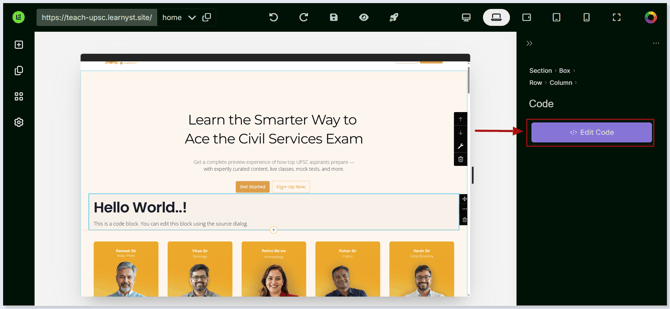
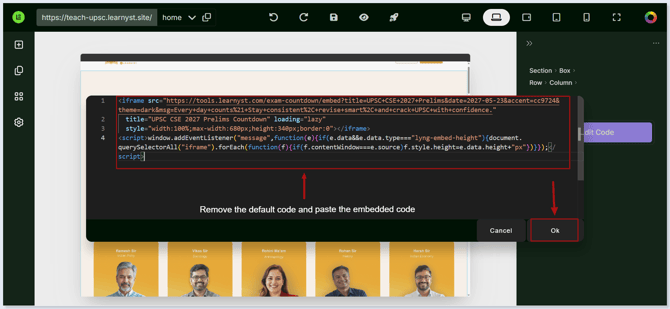
Click Edit Code
-
Paste the copied embed code into the editor.
-
Save your changes and publish the page.
-
Your exam countdown timer will now appear on your website and automatically count down to the selected exam date.