![Learnyst Logo-25-1.png]](https://support.learnyst.com/hs-fs/hubfs/Learnyst%20Logo-25-1.png?height=40&name=Learnyst%20Logo-25-1.png)
By following these steps, we can seamlessly set up and integrate the Razorpay Payment Gateway for our school:
Create a Razorpay Account.- Visit the Razorpay website and click Sign Up at the top-right corner.
- Fill in the required details and complete the sign-up process.
- Enter your details, upload the necessary documents, and submit the form for verification.
- The KYC process usually takes 3-4 business days. Until the KYC is completed, your account will only function in Test Mode and not Live Mode.
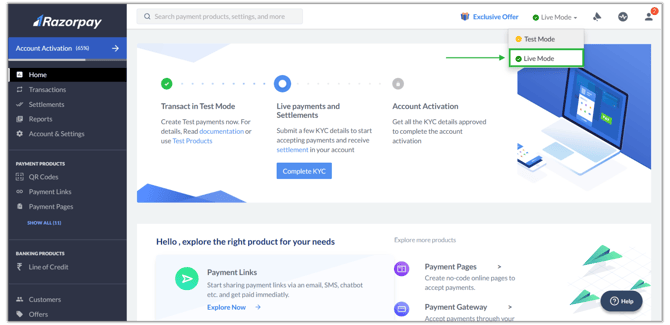
- Once your Razorpay account is approved, log in and switch from Test to Live Mode using the button at the top-right corner.
Generate Secret Keys:
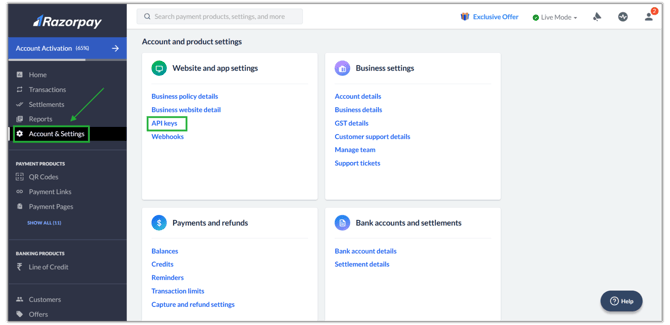
- In Live mode, go to Account and Settings. Locate Website and App Settings and click on API keys.
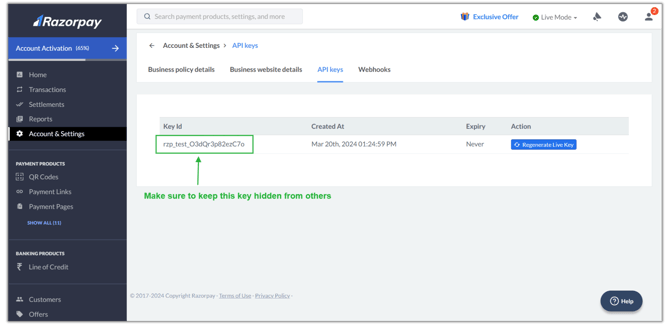
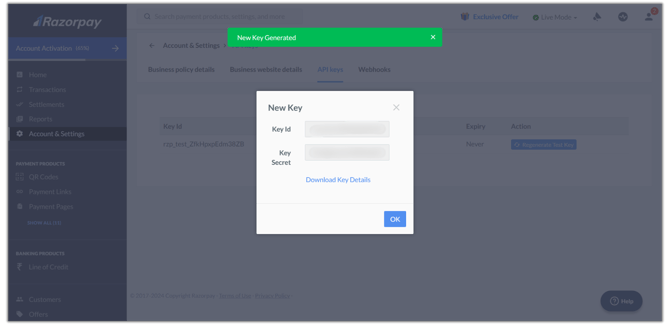
- Click on Regenerate Live Key. This action will prompt a pop-up window to appear where you can view your API key and Key ID (Key Secret) for your account.
- This key can be viewed only once. so click on download key details to save them.
Add Razorpay Gateway to Learnyst:
- Login to your Learnyst account and navigate to settings.
- Select Payment Gateway and then click on Razorpay.
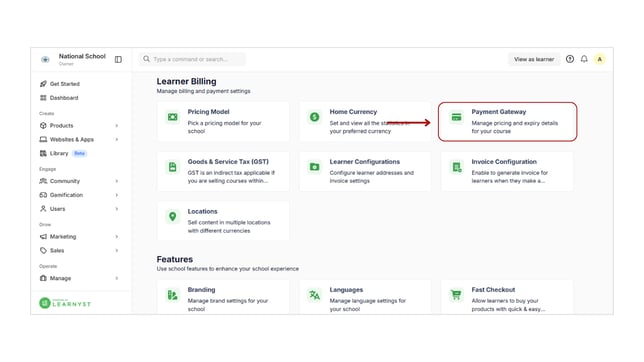
- For the Merchant Key ID field, enter the Key ID that we had downloaded earlier from the Razorpay dashboard.
- For the Merchant Key Secret Field, Enter the Merchant Key Secret.
If you lose your Secret Key, you can regenerate it by clicking on Regenerate Live Key again.
- Webhooks in Razorpay provide instant notifications about key events, like successful payments, directly to your preferred platform, streamlining payment management.
- Within your account settings in Razorpay, click on the Webhooks option located next to API Keys.
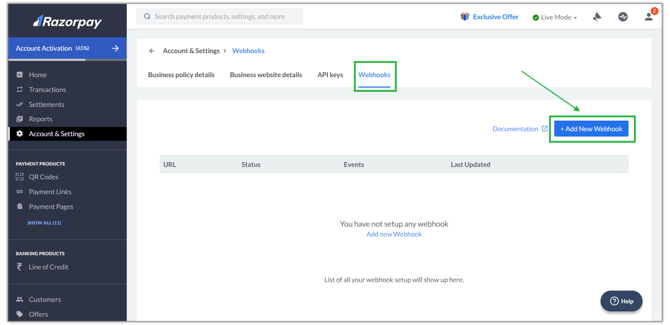
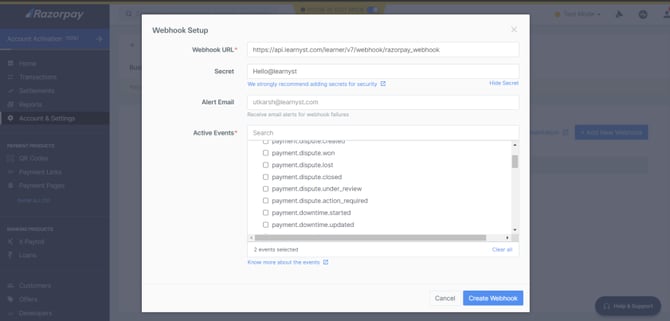
- Click on Add New Webhook. In the Webhook URL field, enter the below URL
https://api.learnyst.com/learner/v7/webhook/razorpay_webhook - Choose a distinct Secret Key (e.g., "Hello@learnyst") to enter into the Secret Field. Remember to keep this Secret Key confidential for security purposes.
- Select order.paid and payment.authorized under Active Events.
- Click on Create Webhook.
- Return to the payment gateway page, and input your webhook secret in the designated field. In my scenario, I inputted my Secret key as "Hello@learnyst".
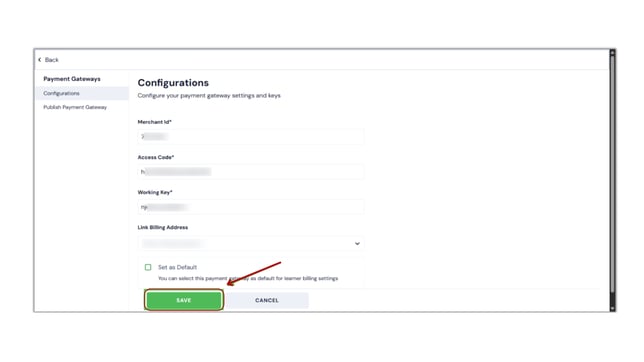
- Click Save to make the required changes.
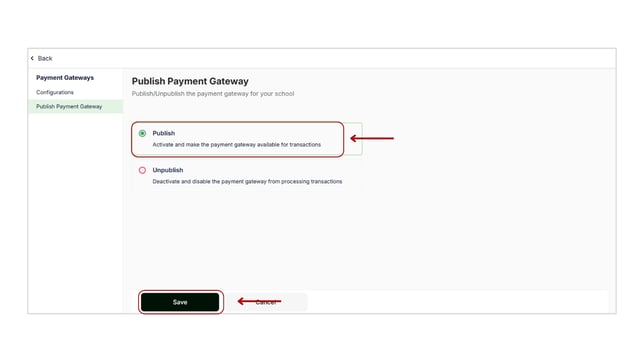
- After completing the configuration, click on Publish Payment Gateway and then click on Publish to save your changes.
Razorpay is primarily used for transactions within India in the INR currency. For businesses looking to accept global payments, alternative options such as Paypal and Stripe can be explored.
Limitations
- Event tracking works only after the Meta Pixel has been correctly installed on your learner website.
- Purchase events are triggered only after a successful payment confirmation.
- Sign-up tracking requires adding the provided tracking code in Marketing → Integrations → Code Snippets.
- Browser extensions such as ad blockers or privacy tools may prevent Meta Pixel events from being recorded.
- Events may take a few minutes to appear in the Meta Events Manager dashboard.
- This guide covers browser-based event tracking only. Additional configuration may be required for advanced tracking methods such as the Meta Conversions API.
FAQs
1. Do I need a Meta Business account?
Yes. A Meta Business account is required to create and manage your Meta Pixel.
2. Can I track both purchases and sign-ups?
Yes. Learnyst supports tracking both Purchase and Sign Up events by following the respective setup steps in this guide.
3. How can I verify that the events are being tracked?
Use the Test Events section in Meta Events Manager and perform a test purchase or sign-up. If configured correctly, the events will appear in the dashboard.
4. Why are my events not appearing?
Common reasons include:
- Meta Pixel is not installed correctly.
- The tracking code was not saved in Learnyst.
- Browser ad blockers are blocking the Pixel.
- The test event was not completed successfully.
- There may be a short delay before events appear in Meta Events Manager.
5. Can I use this tracking for Meta Ads optimization?
Yes. Once your Purchase and Sign Up events are being tracked successfully, you can use them to optimize your Meta advertising campaigns, create custom audiences, and measure conversions.
6. Will this affect my learners' experience?
No. Event tracking runs in the background and does not impact the learner's browsing or checkout experience.
7. Do I need to configure the events again if I change my website domain?
Yes. If your learner website URL changes, review your Meta Event Setup Tool configuration to ensure the events are associated with the correct domain and URLs.
These sections follow the style of Learnyst Help Center articles by giving first-time users enough context before the setup and addressing common questions after the implementation.